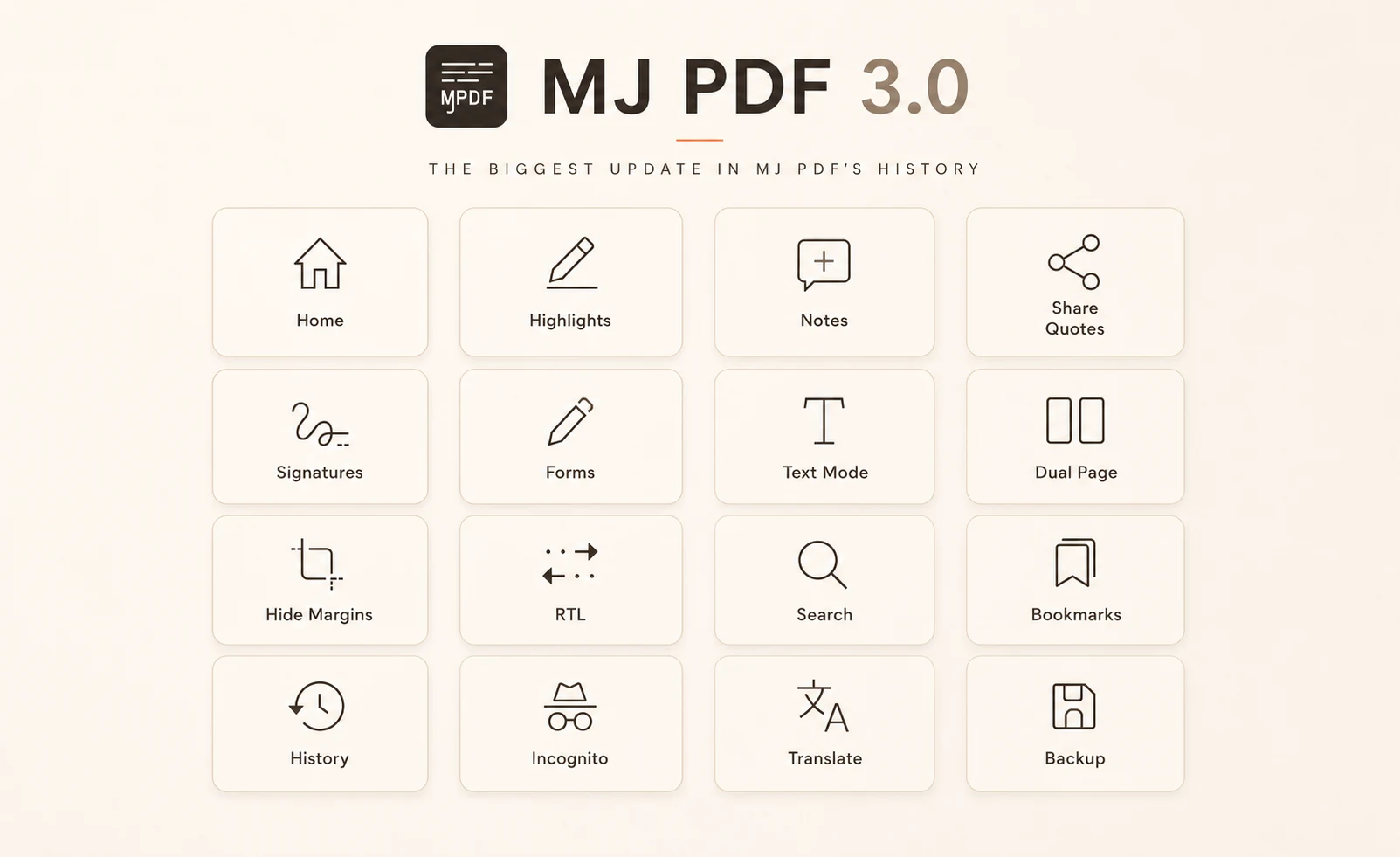
I am so happy to announce MJ PDF v3.0.0. This is not only a release, it is a rewrite of nearly every corner of the app, and the point where MJ PDF stops being a fork.
What ships today is its own codebase, with its own reader libraries and its own PDF engine build. And I am proud to say that nearly all user requests have been fulfilled.
- MJ PDF v2: ~260 files, ~30K lines of code
- MJ PDF v3: ~570 files, ~80K lines of code
Through all of it, MJ PDF stays what it has always been:
- Small (8.5 MB)
- Fast (actually faster)
- Simple to use
- Private, and free of ads or tracking.
Quick Links#
Home#
A New Home Screen#
MJ PDF used to open with a file picker. Now it opens to a real library.
| The Recent tab |
|---|
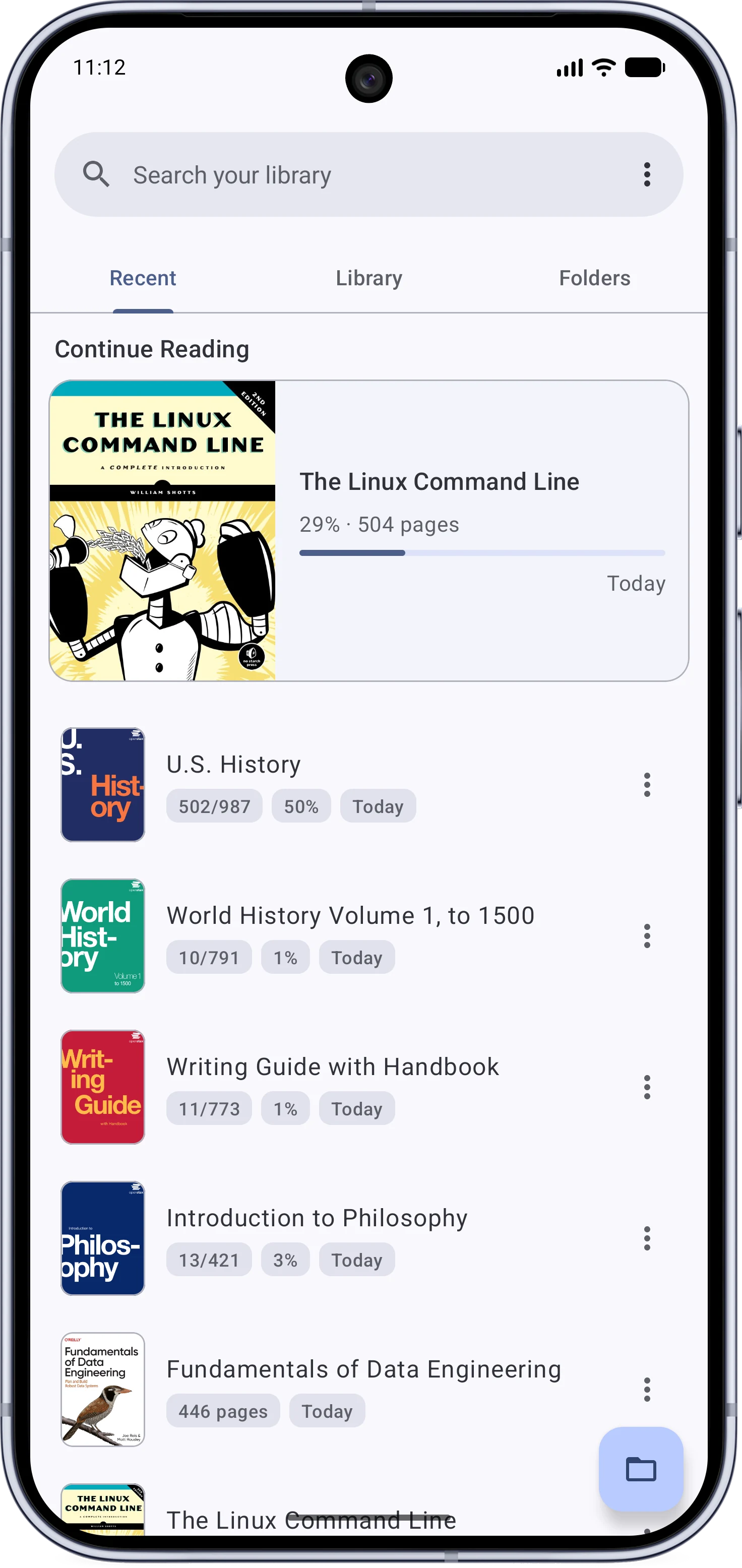 |
- Three swipeable tabs: Recent, Library, and Folders. The selected tab is remembered.
- A Continue Reading pager and a detailed reading history list.
- Search from Home finds every PDF on your device, not just the ones you opened.
- Home shows each document’s real title instead of its filename.
If you liked the old behavior, the Home screen can be turned off entirely, and opening a PDF from another app still goes straight to the reader.
Your Library, Organized#
| The Library tab |
|---|
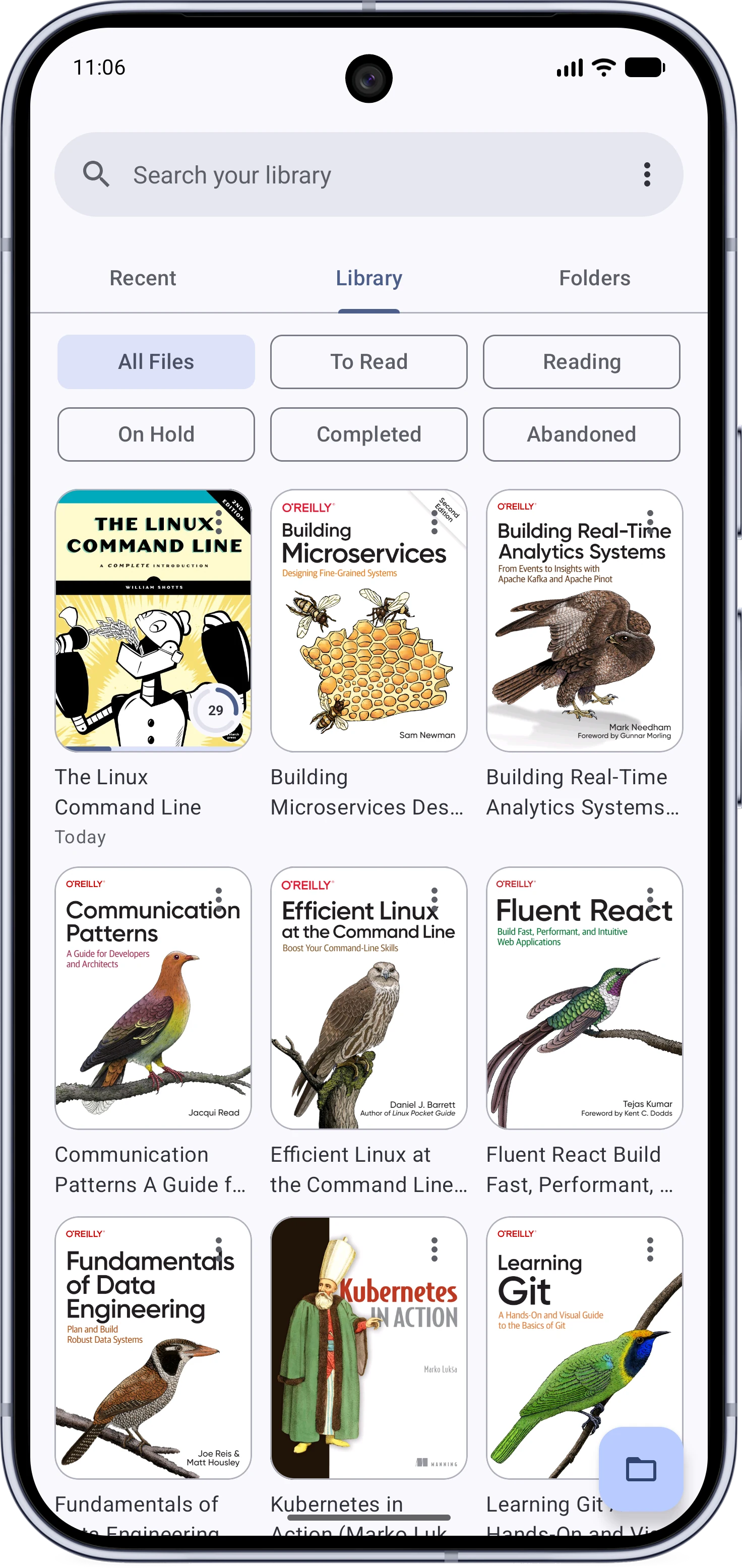 |
- Reading statuses: to-read, reading, on-hold, completed, and abandoned.
- First-page covers in a grid or a list, with adjustable density and sorting.
- Reading progress on every cover, as a ring with the percentage or a thin bar. You pick in the settings.
- Every card has an options dialog to see: full PDF properties, progress, status picker, rename on disk, and delete from device.
- Hide a book from the library, or remove it from Recents.
Documents are identified by their content, so progress and statuses survive moving, renaming, and re-downloading files. A moved file heals silently when the scanner finds it again.
Folders and Scanning#
| The Folders tab | Choosing scan locations |
|---|
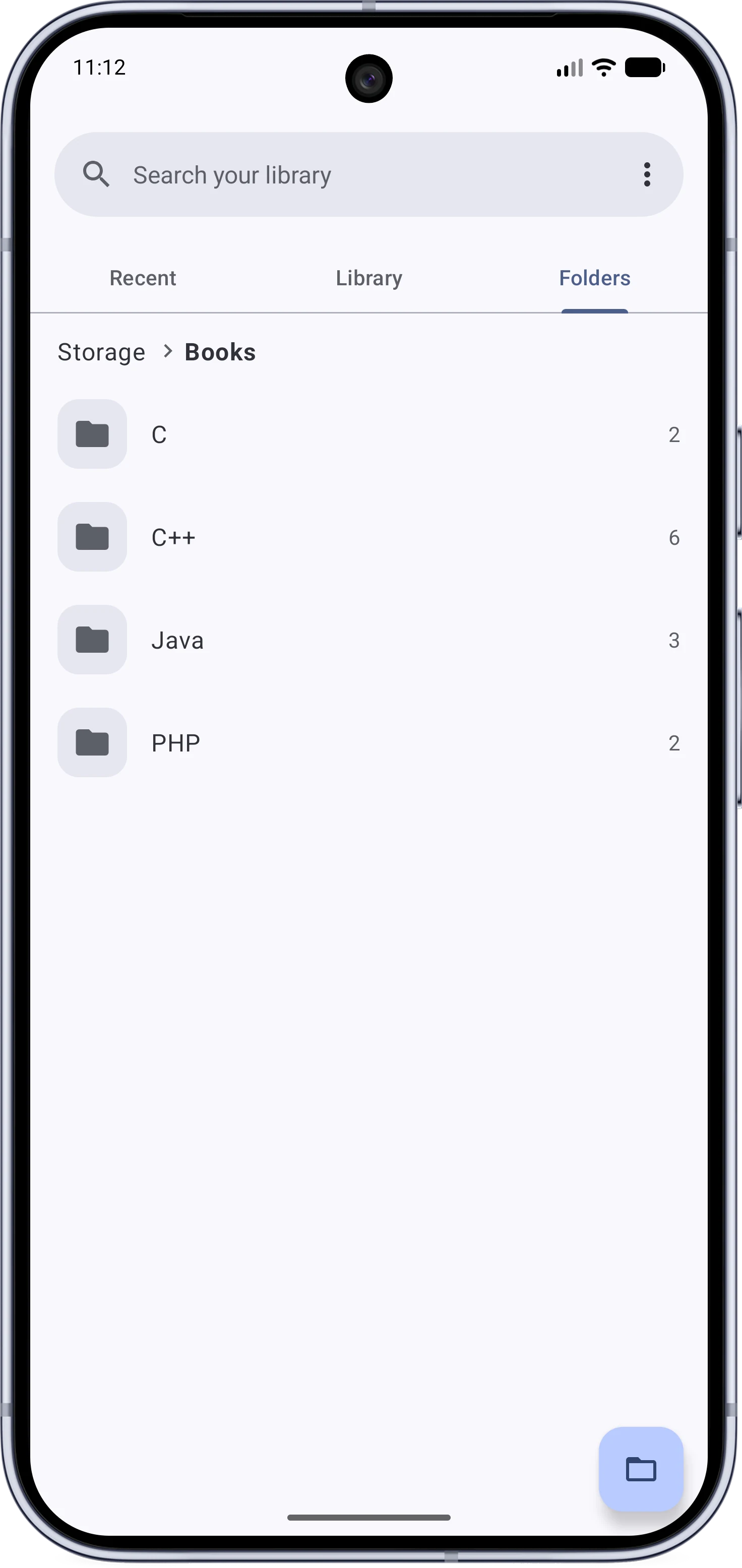 | 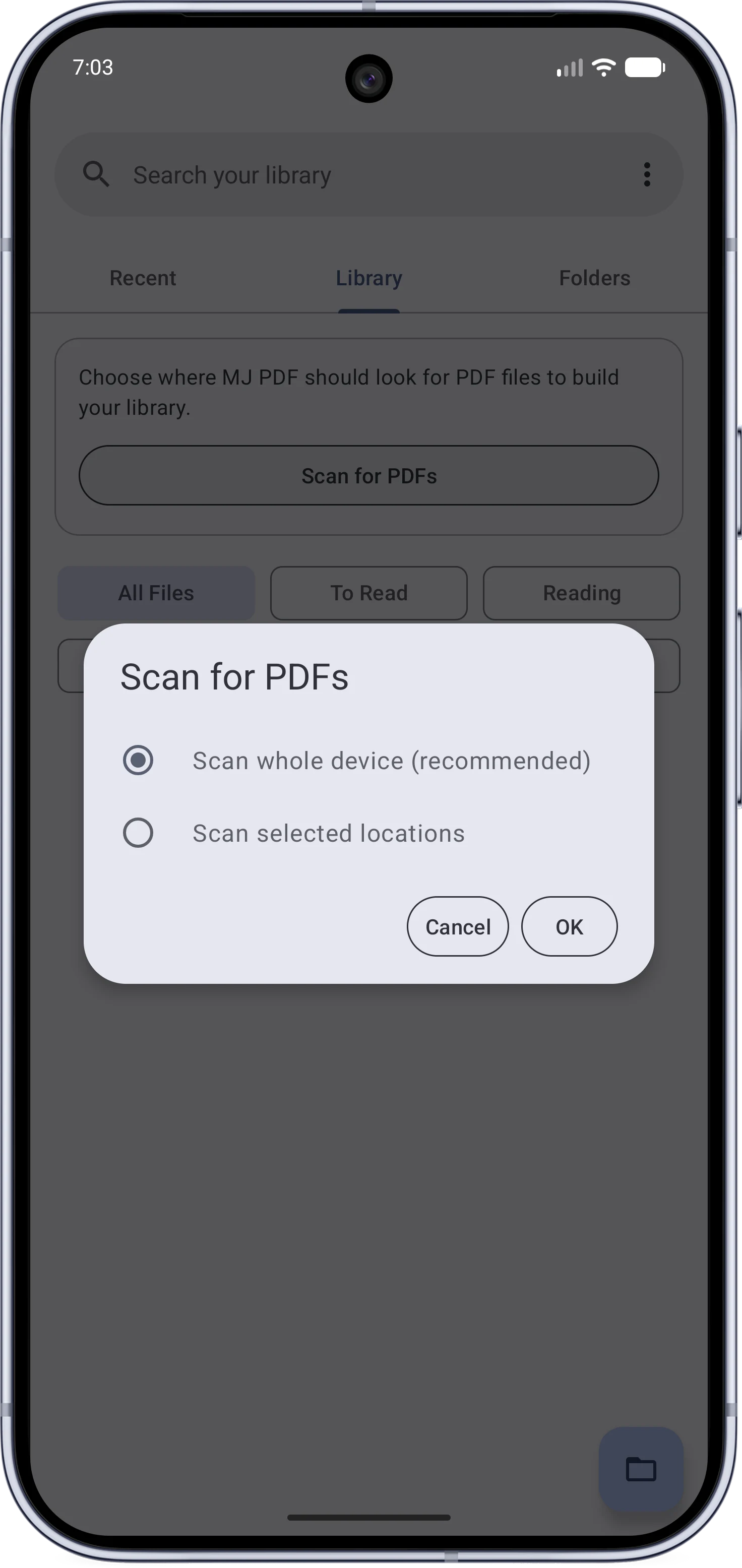 |
- The Folders tab browses every PDF on the device by folder.
- Supports hierarchy mode and flat mode.
- The library fills near-instantly on a fresh install using the system media index, and a background scan catches the rest.
- Customize what folders to get scanned in the Library tab (Folders tab shows everything).
Annotation#
Text Selection and Highlighting#
Live inline text selection, finally.
| Selecting and highlighting text | My Highlights |
|---|
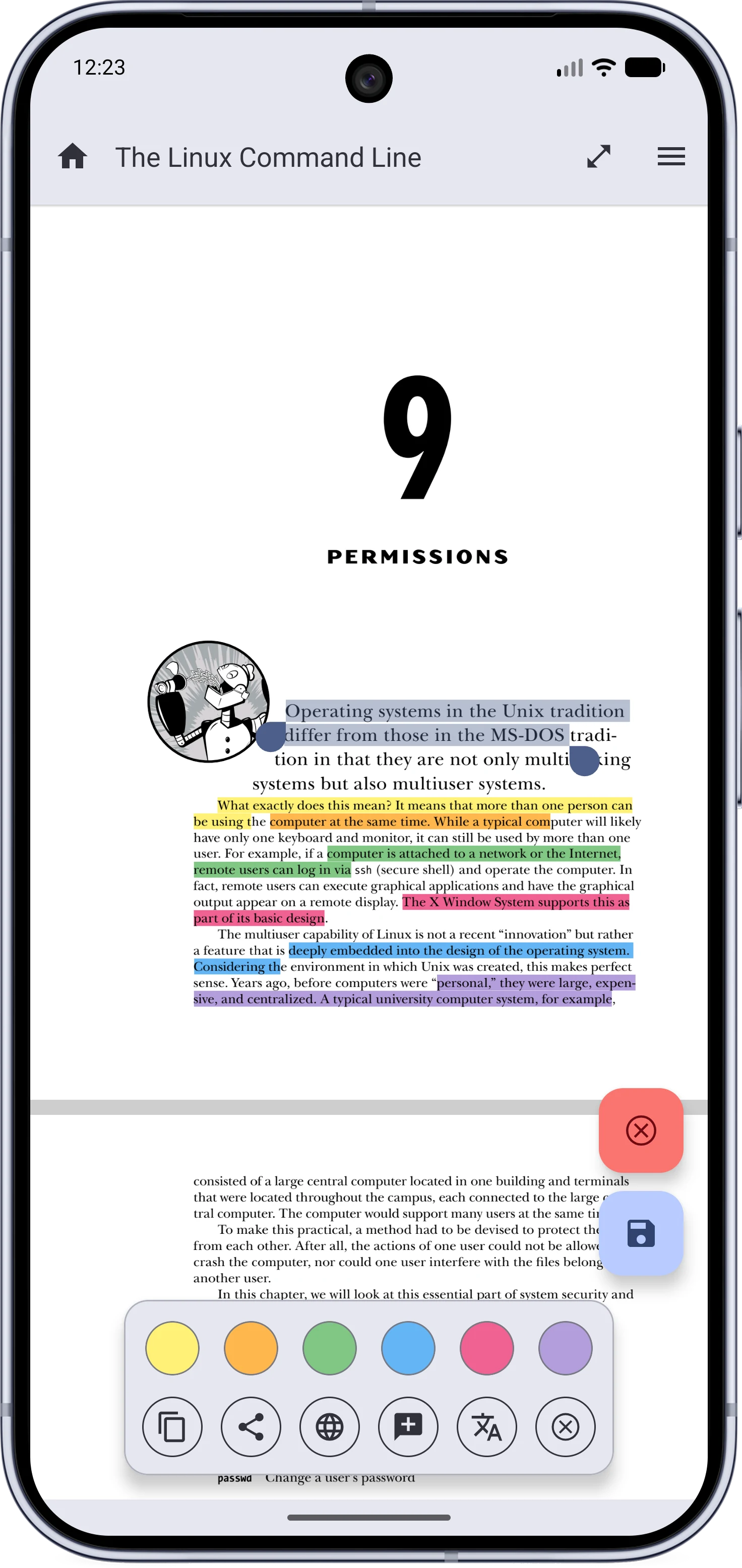 |  |
- A floating card with six highlight colors on top and Copy, Share, Web, Note, Translate, and Delete actions below.
- Highlights are saved into the PDF itself, so they show up in any other reader.
- Highlights that already exist in the document are detected, selectable, and editable.
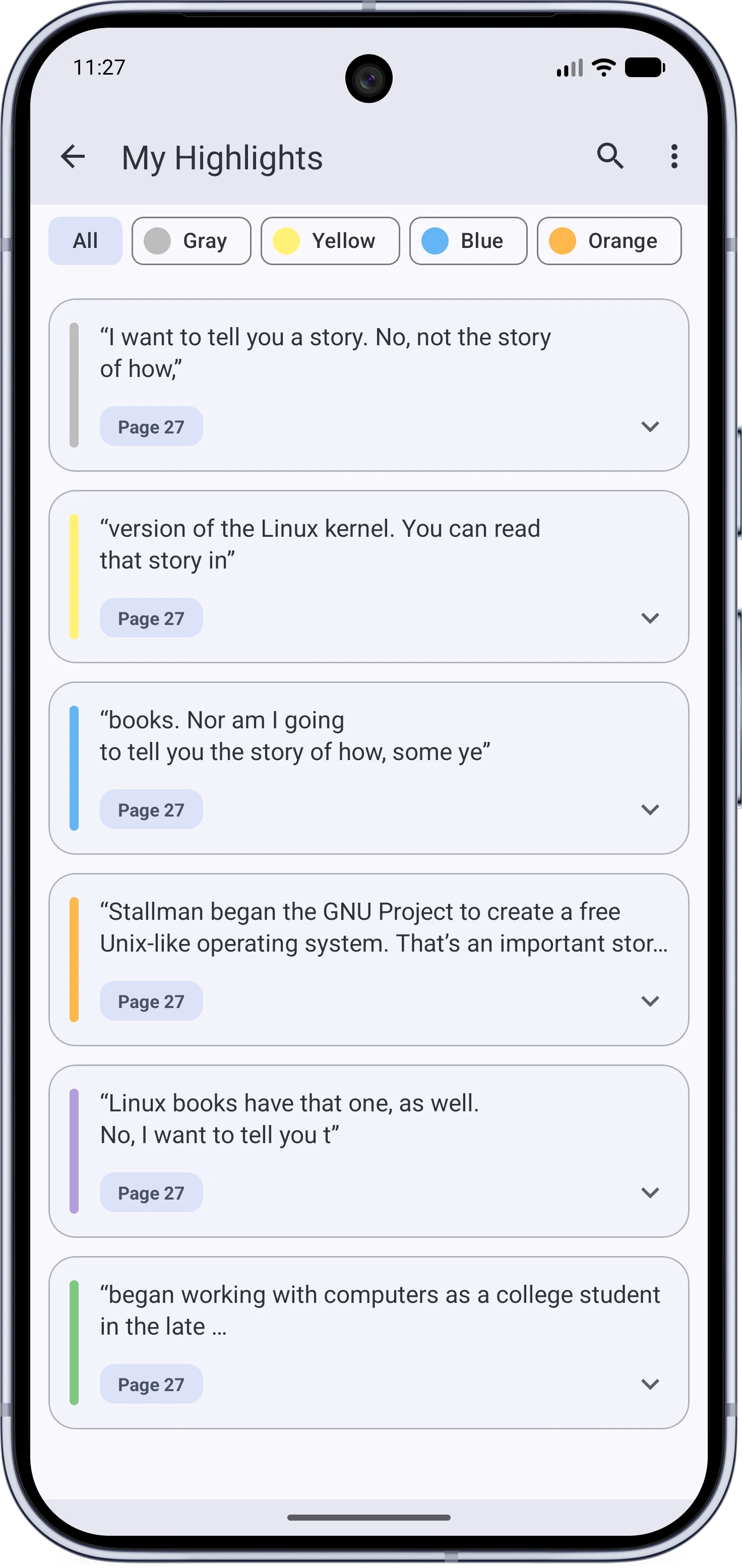
- A My Highlights page lists every highlight in the document, with search, date sorting, a color filter, and plain text export.
- Unsaved work survives rotation, restarts, and even crashes through autosave recovery.
Notes#
| Adding a note | My Notes |
|---|
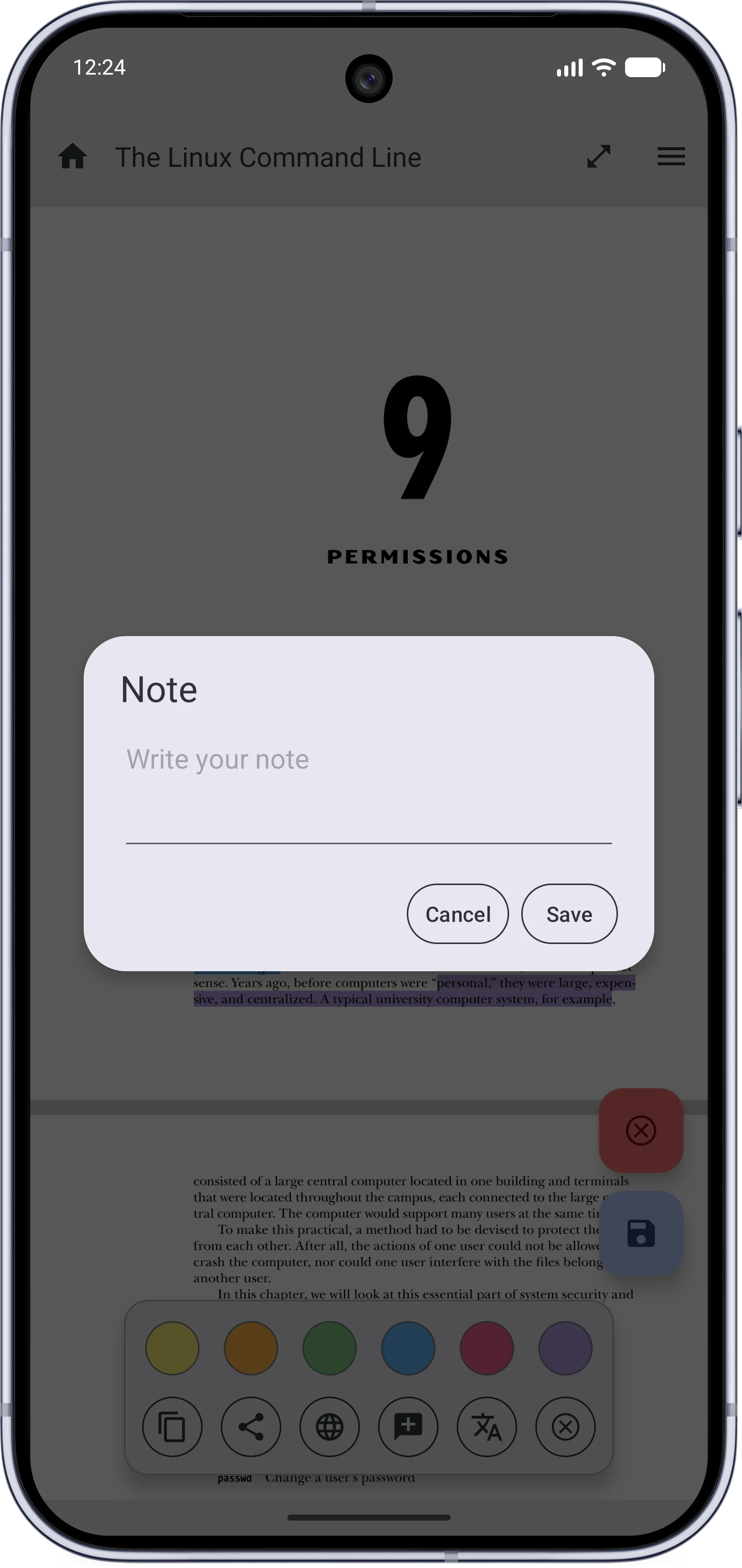 | 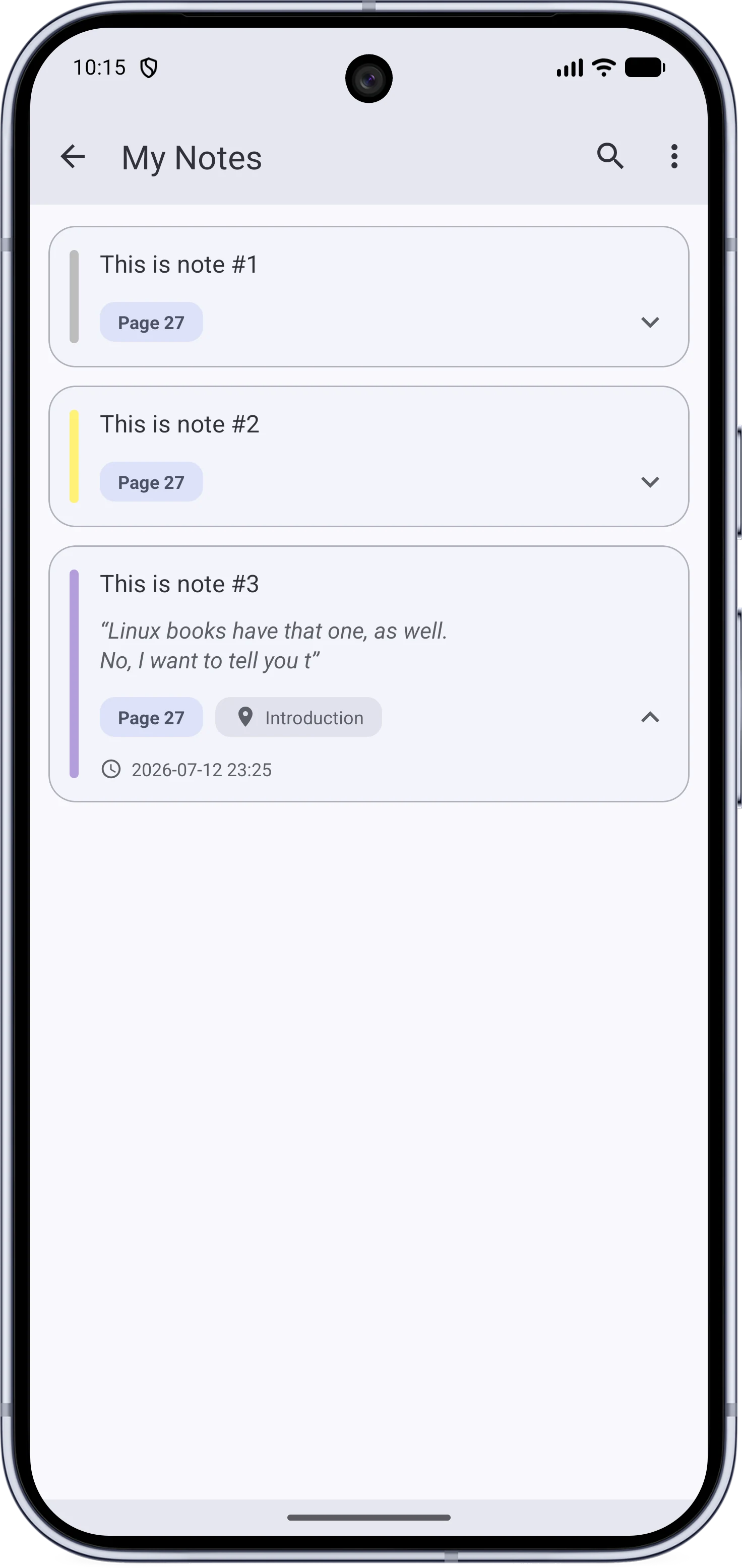 |
- Attach a note to any highlight. Notes are stored inside the PDF, with creation and modification dates.
- A note on plain text creates a gray highlight, so notes work without coloring the page.
- A My Notes page lists every note in the document.
Share Quotes as Images#
One of my favorite features in this release.
| A quote, ready to share |
|---|
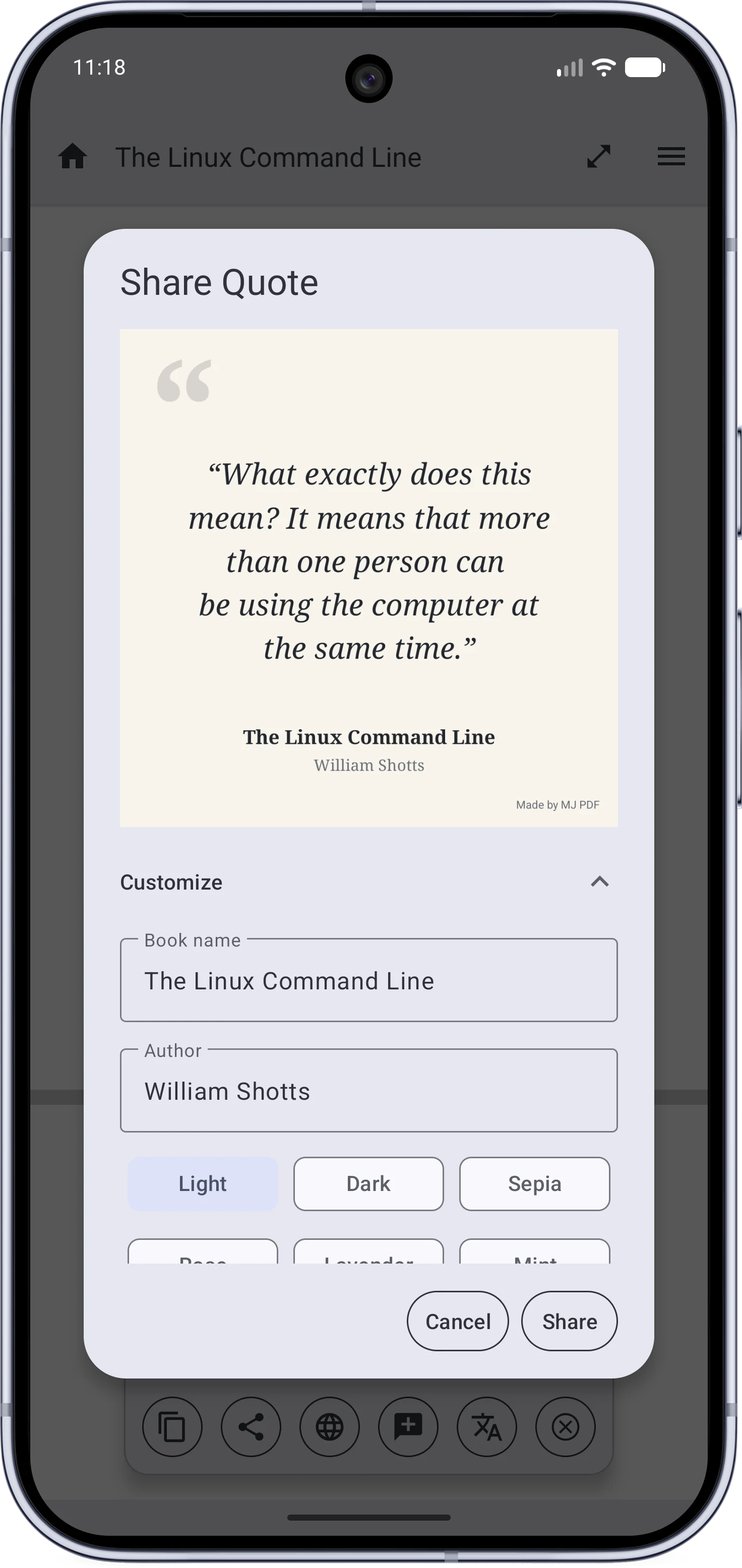 |
- Turn any selected text into a clean square image with the book’s name and author.
- Customize it however you like! (you can remove the “Made by MJ PDF”)
Translate and Define#
| The offline dictionary | Translation settings |
|---|
 | 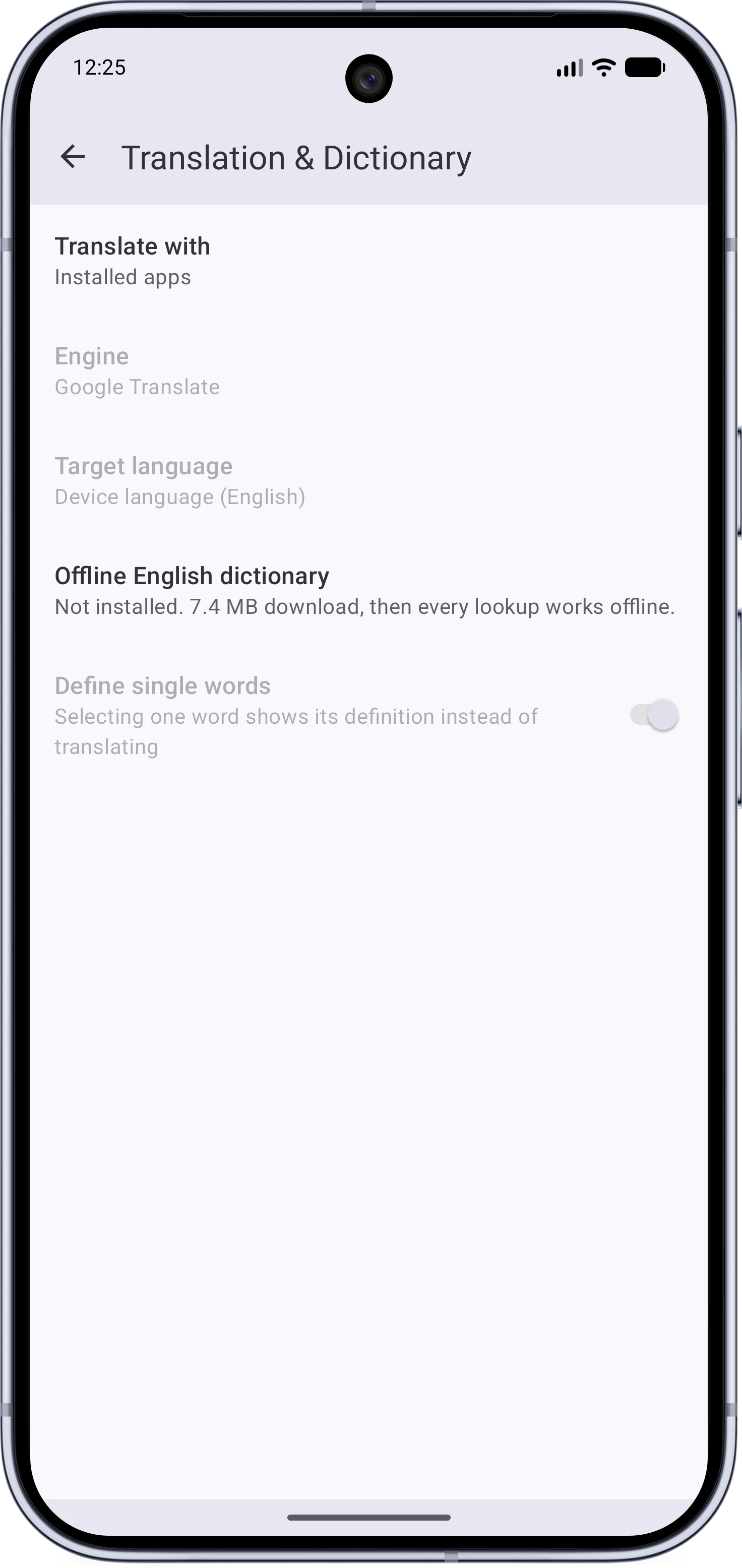 |
- Translate selected text with your installed translation apps or through web translators.
- Supports 5 web translators and you can add your custom one.
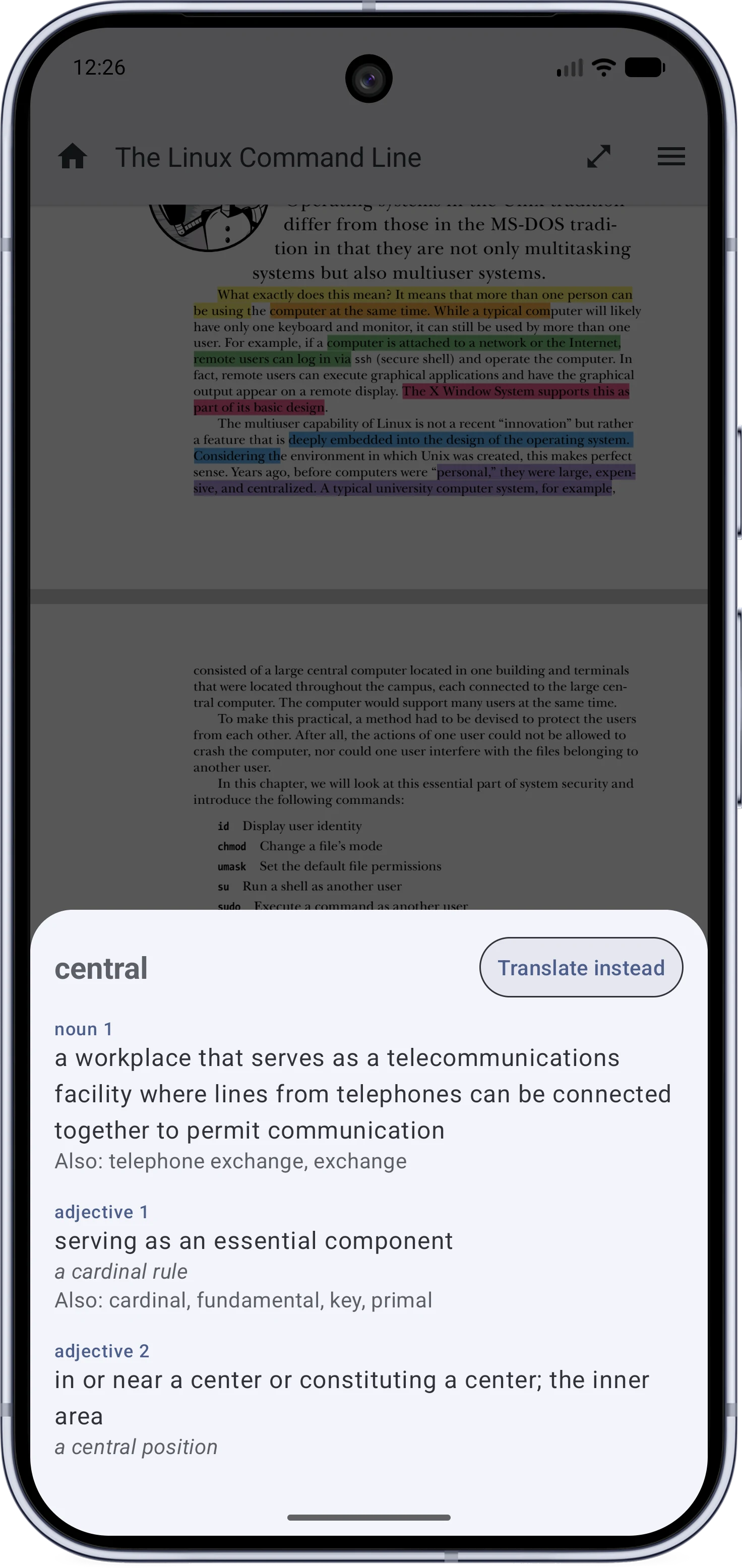
- For single words, you can install an optional offline dictionary (about 7 MB, built from WordNet) and get definitions with no network at all.
Handwritten Signatures#
| Drawing a signature | Placing it on the page |
|---|
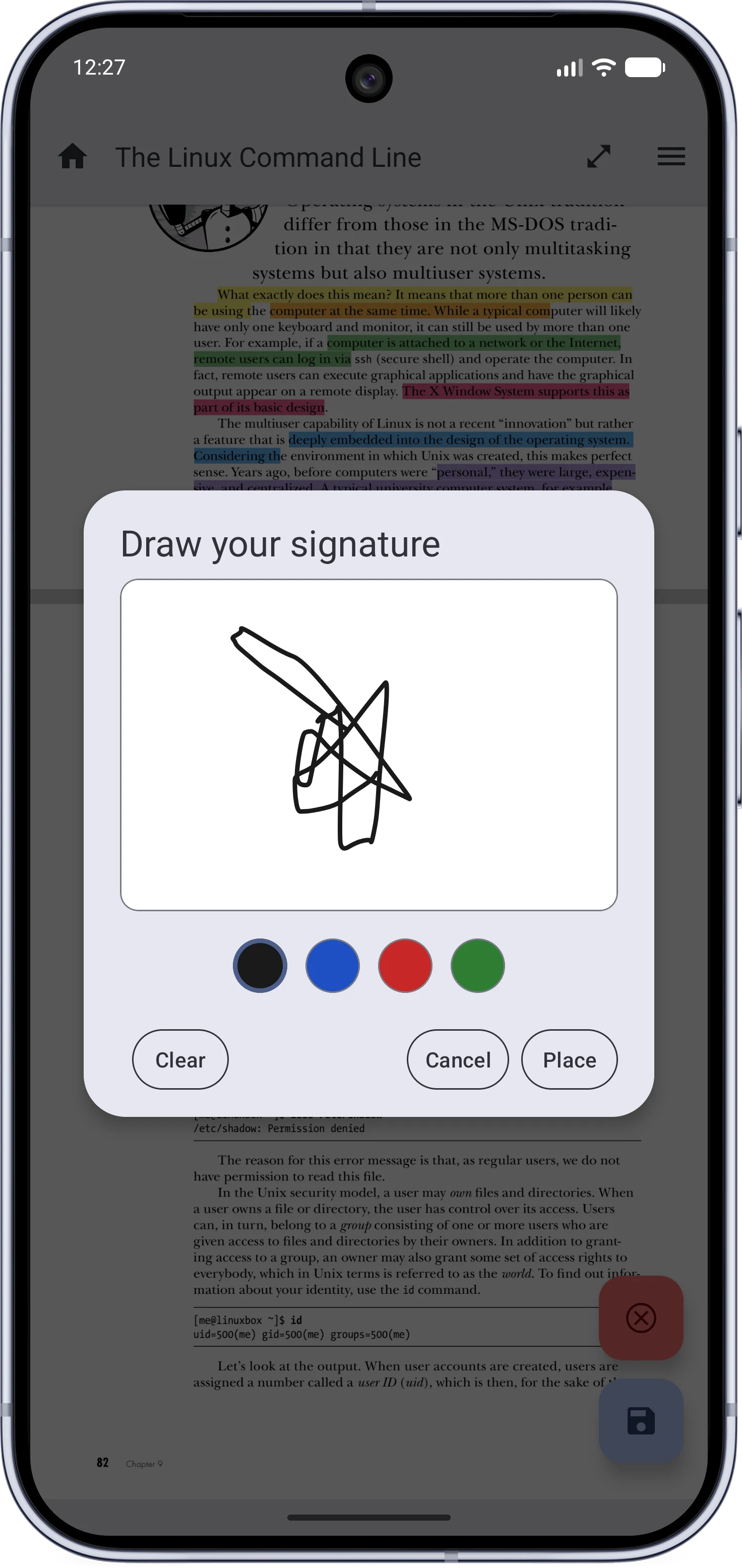 | 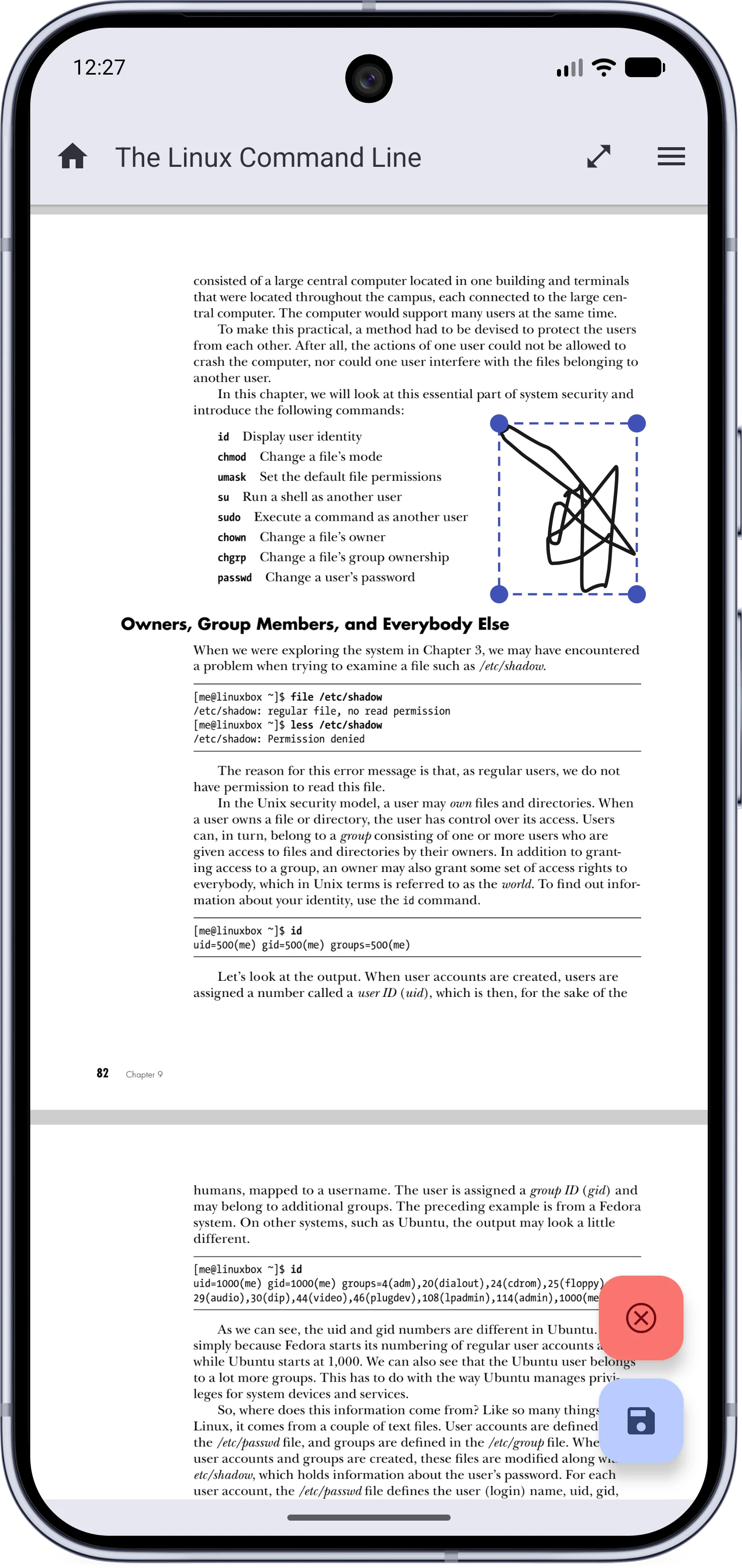 |
- Draw a signature once, then place, move, and resize it on any page.
- Stored as vector strokes, so it stays sharp at any zoom.
- Saved into the PDF as page content, so every reader displays it.
- The app remembers your signature for the next document.
| Filling a form |
|---|
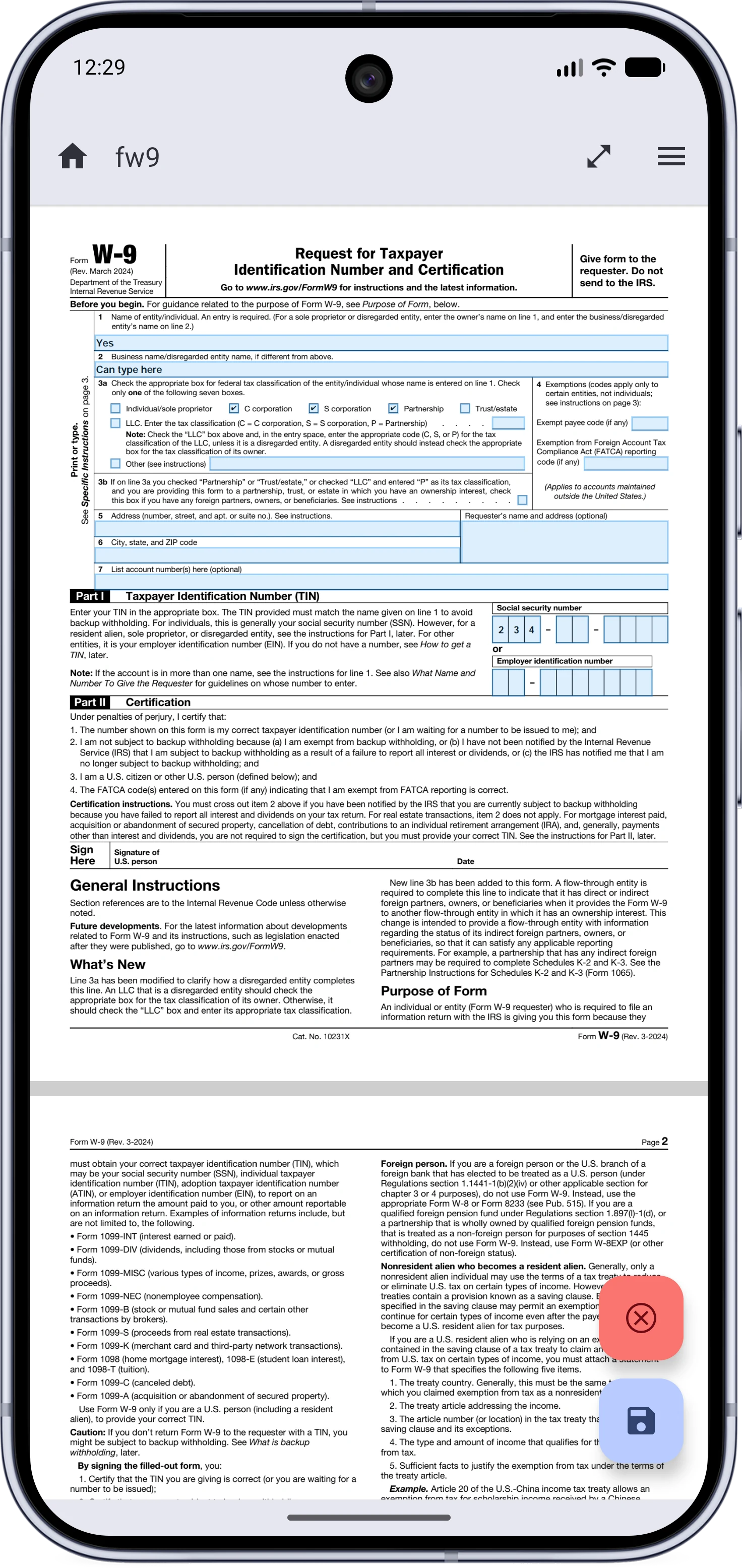 |
- Fill PDF form fields directly in the reader.
- A tap tolerance makes small checkboxes easy to hit, and edits no longer reload the page.
Reading#
The Reader Menu and Configurable Controls#
| The redesigned menu | Configuring the buttons |
|---|
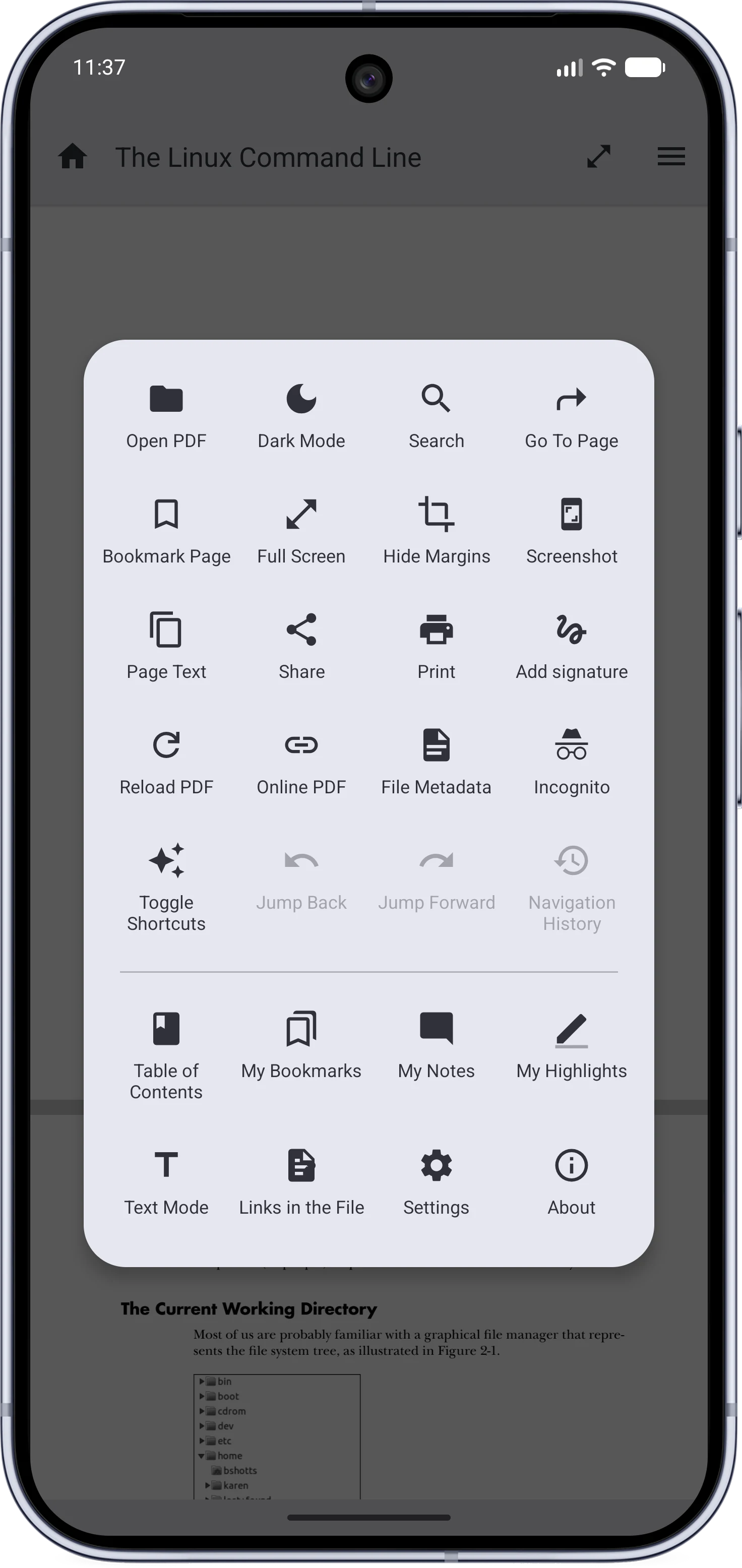 | 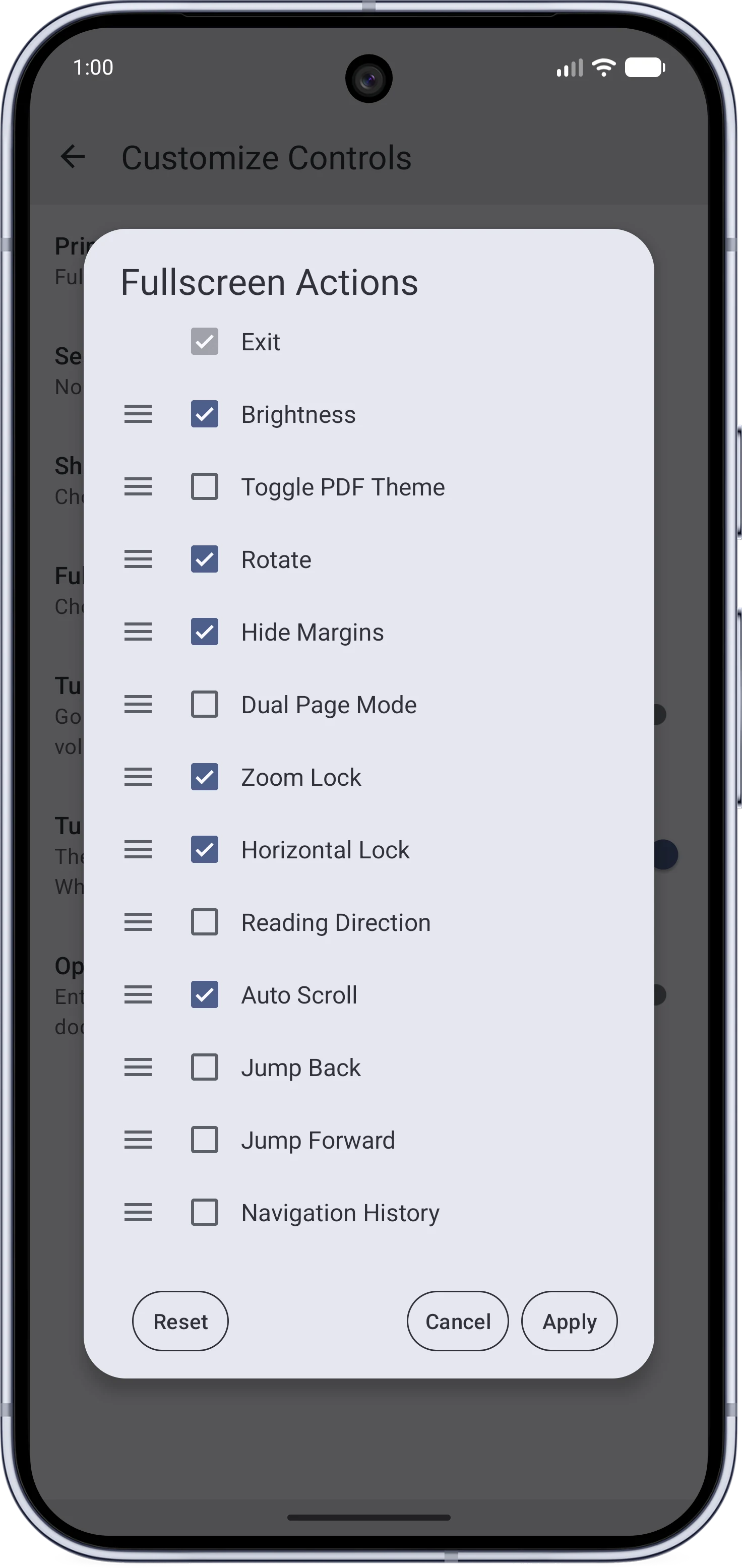 |
- A simple reader menu that exposes most Actions and Pages.
- You can very freely configure and re-order options in:
- The toolbar
- The shortcut bar
- The fullscreen buttons.
Hide Margins#
| Before | After |
|---|
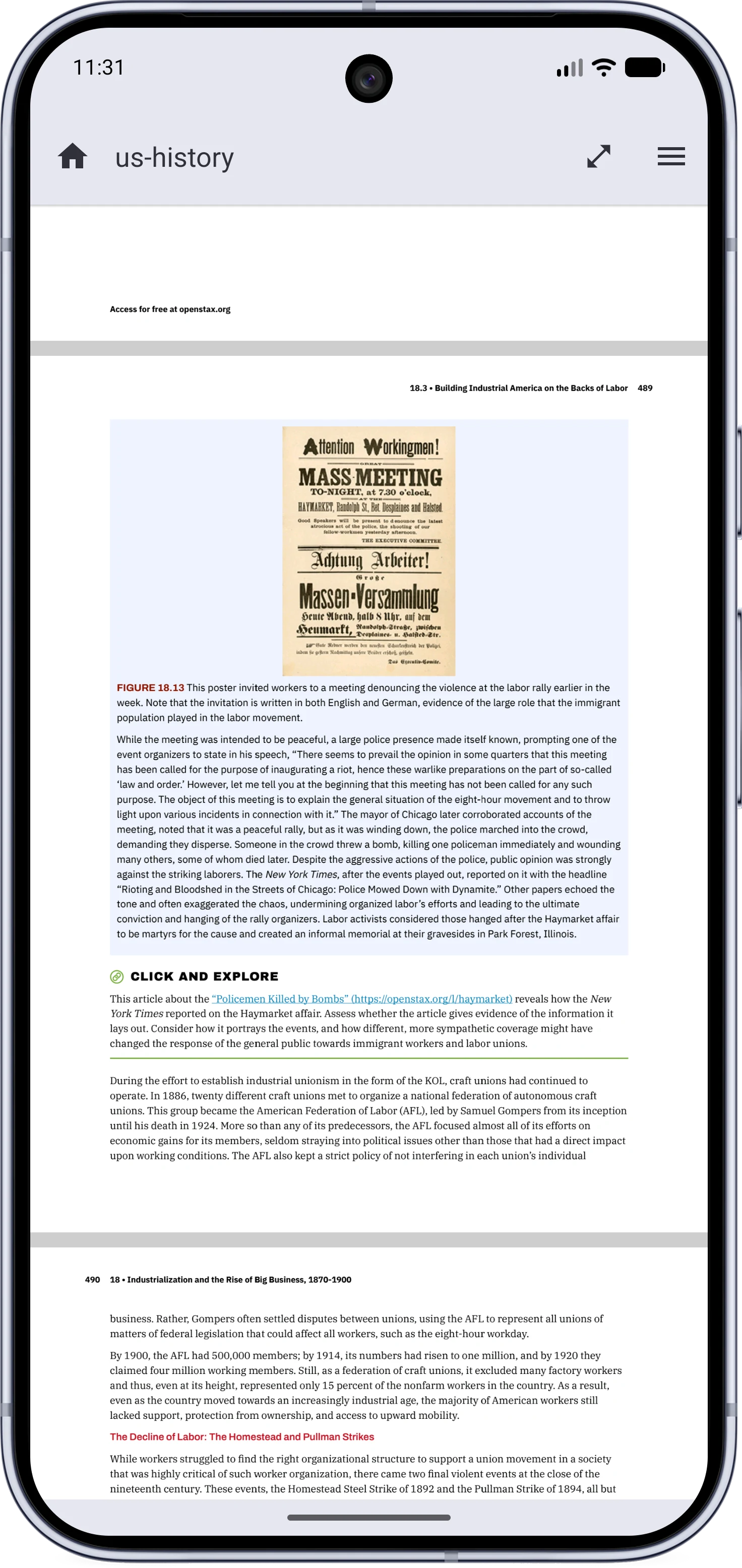 | 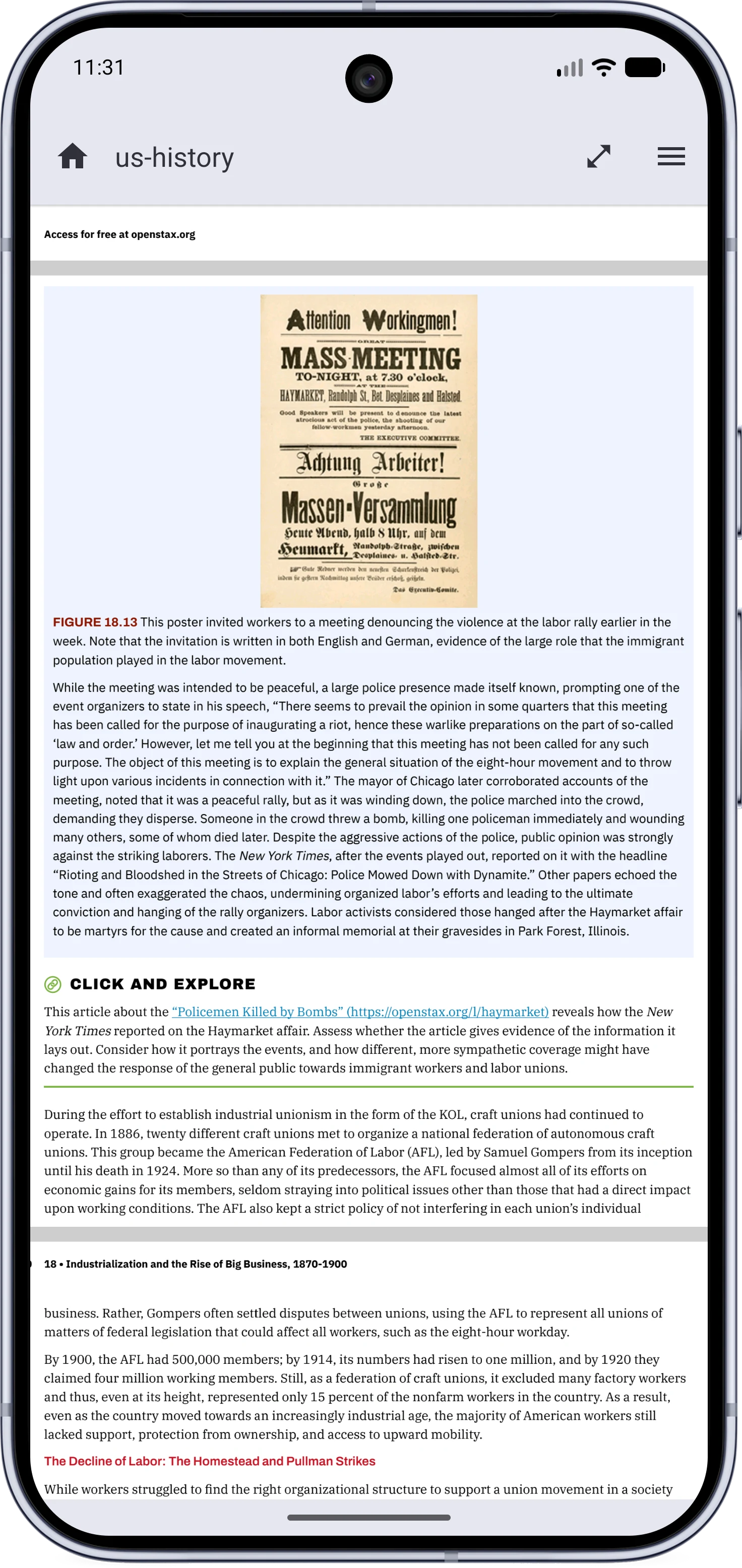 |
- Hide Margins detects blank page margins and crops them away, so the text fills your screen.
- Detection runs in the background with a cancelable progress card, and results are cached per PDF.
- Per-page overrides, a global always-hide option, and your reading position survives the switch.
- The file itself is never changed.
Fun fact: This is the feature that I personally wanted the most and what prompted the whole v3.0.0 work.
Dual Page Mode#
| Two pages, like a book |
|---|
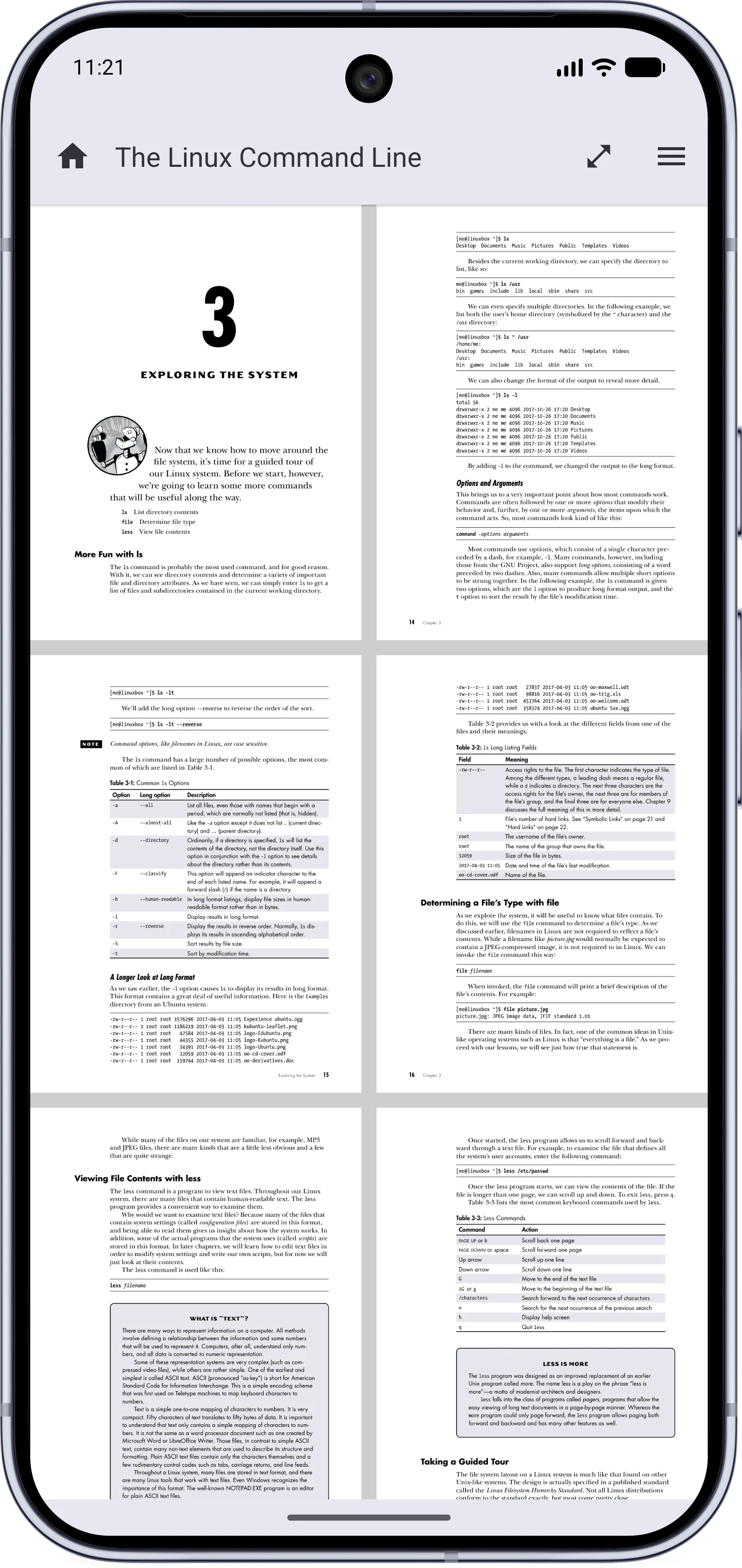 |
- Dual Page Mode pairs pages side by side like an open book.
- An optional First Page Alone setting keeps the cover on its own, so spreads line up like print.
Right-to-Left Reading#
| The reading direction override |
|---|
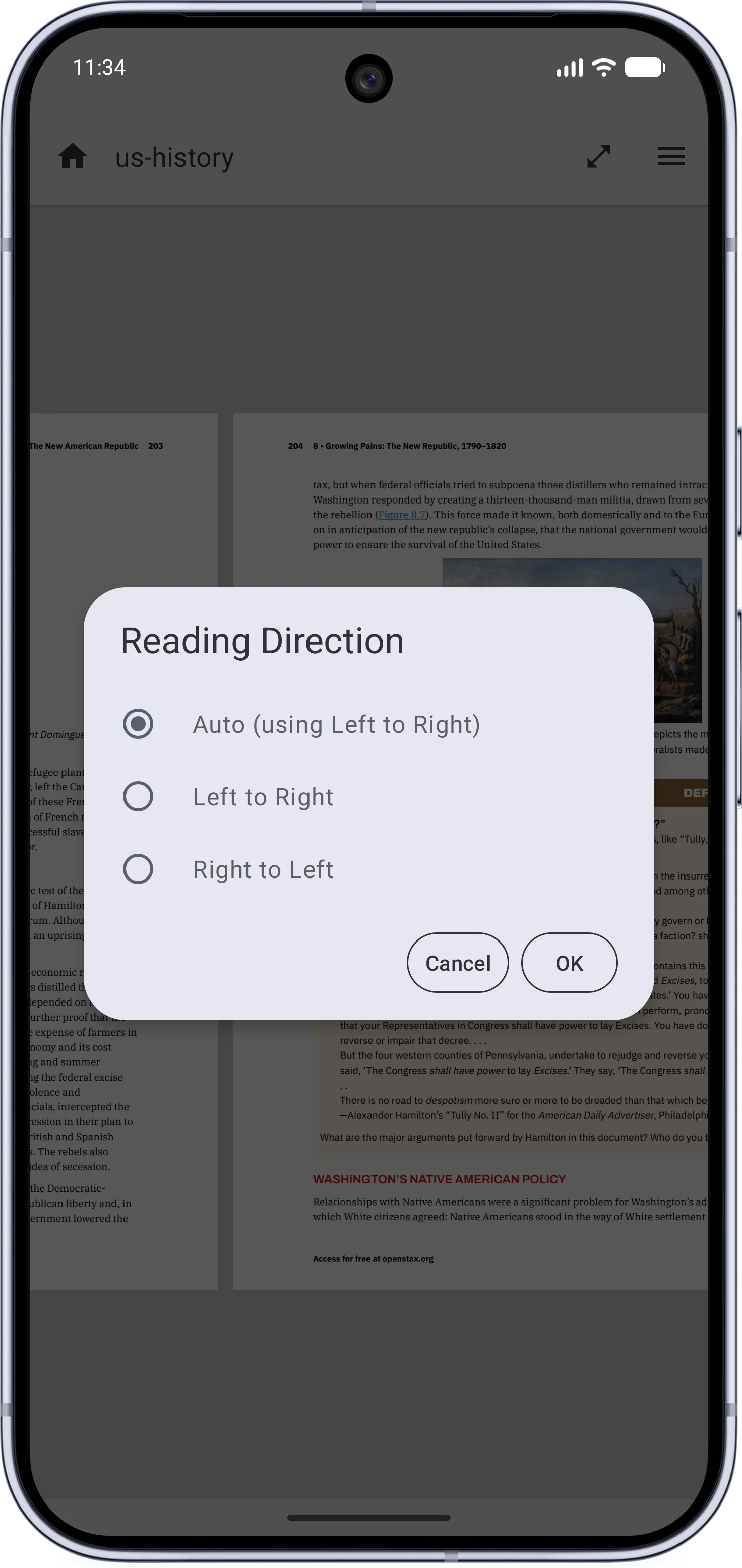 |
- Right-to-left reading in horizontal mode, for Arabic books, and anything else that flows the other way.
- The direction is detected automatically per document, with a per-document override.
A Rebuilt Text Mode#
Text Mode turns any PDF into something that reads like an e-book, and in v3 it was rebuilt from scratch.
| Text Mode |
|---|
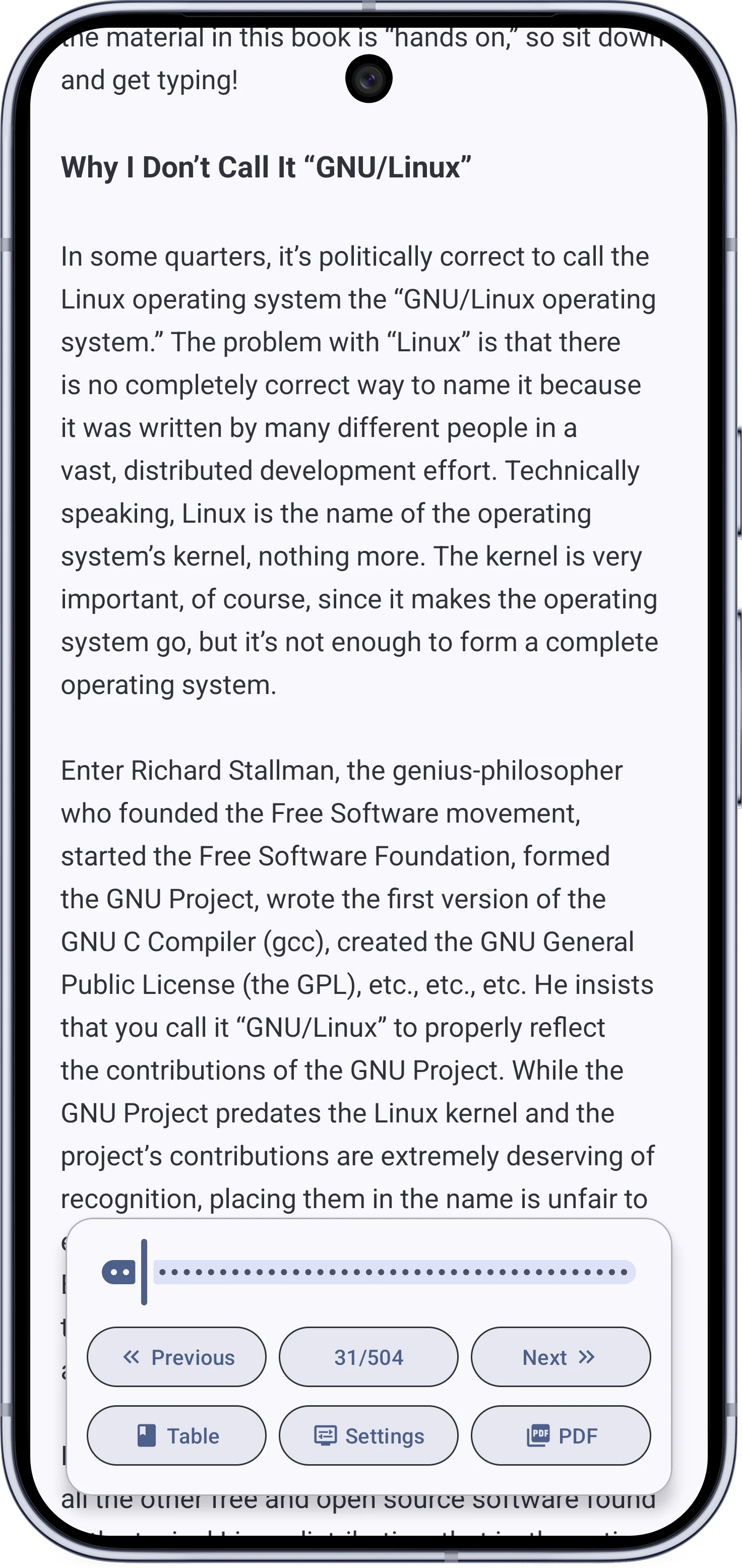 |
- Reflow tries to rebuild real paragraphs instead of raw hard-wrapped lines.
- Headings are detected by size and weight, lists keep their lines, and poetry is left alone.
- Hyphenated line breaks are joined correctly, and right-to-left pages reflow with direction-aware rules.
- Text Mode settings let you choose from multiple fonts, themes, text sizes, and a readable line length option.
Search and Navigation#
Faster, Smarter Search#
| Search results in the reader |
|---|
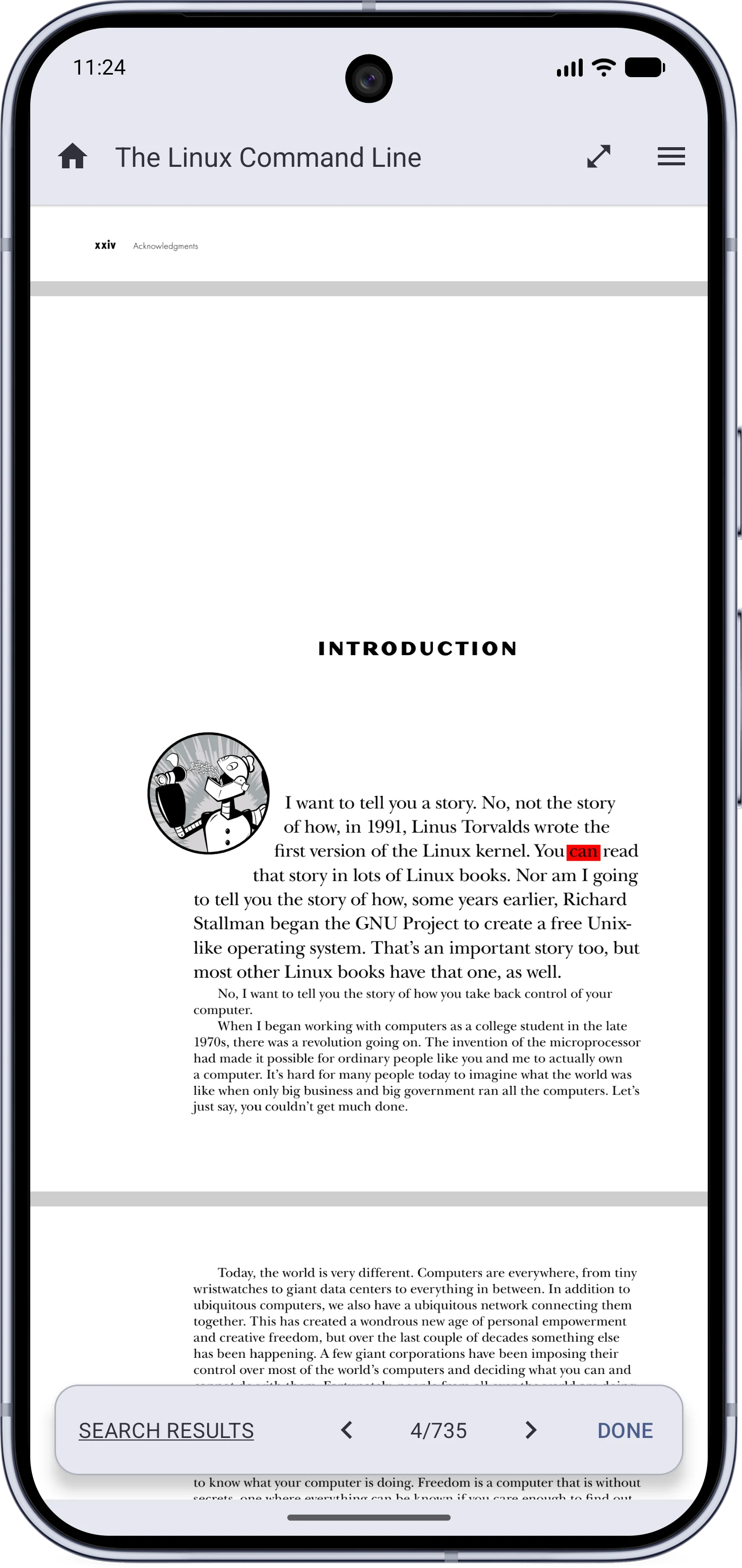 |
- Results stream in live while the document is being scanned, instead of appearing at the end.
- Step through matches from inside the reader with previous and next arrows and a live counter.
- Picking a result centers the view on the match, with an optional zoom.
- Search sessions are cached, so repeating a search is near instant, and the list remembers its position.
- Added an option to ignore letter accents while searching.
Go To Page and All Pages#
| The Go To Page dialog | All pages at a glance |
|---|
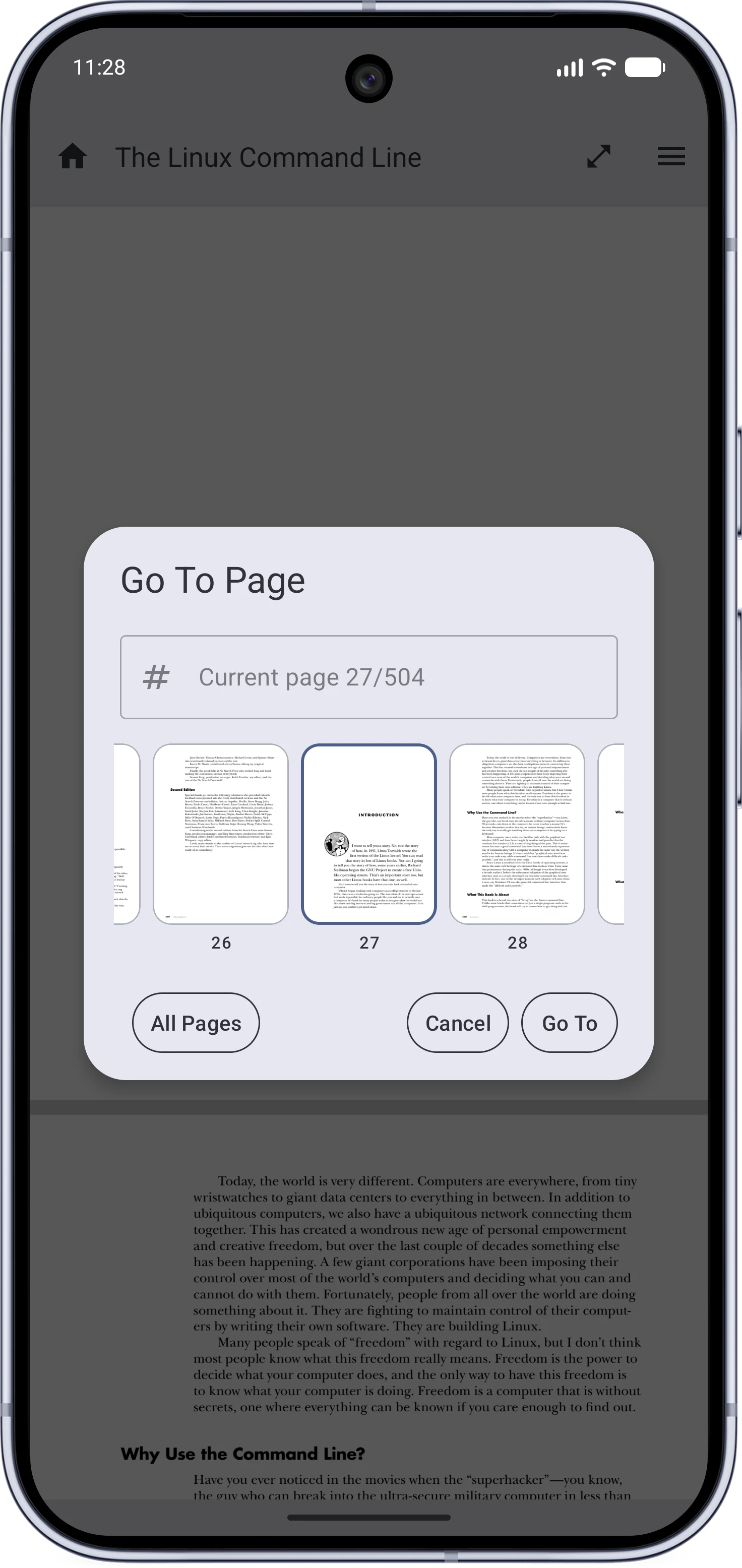 | 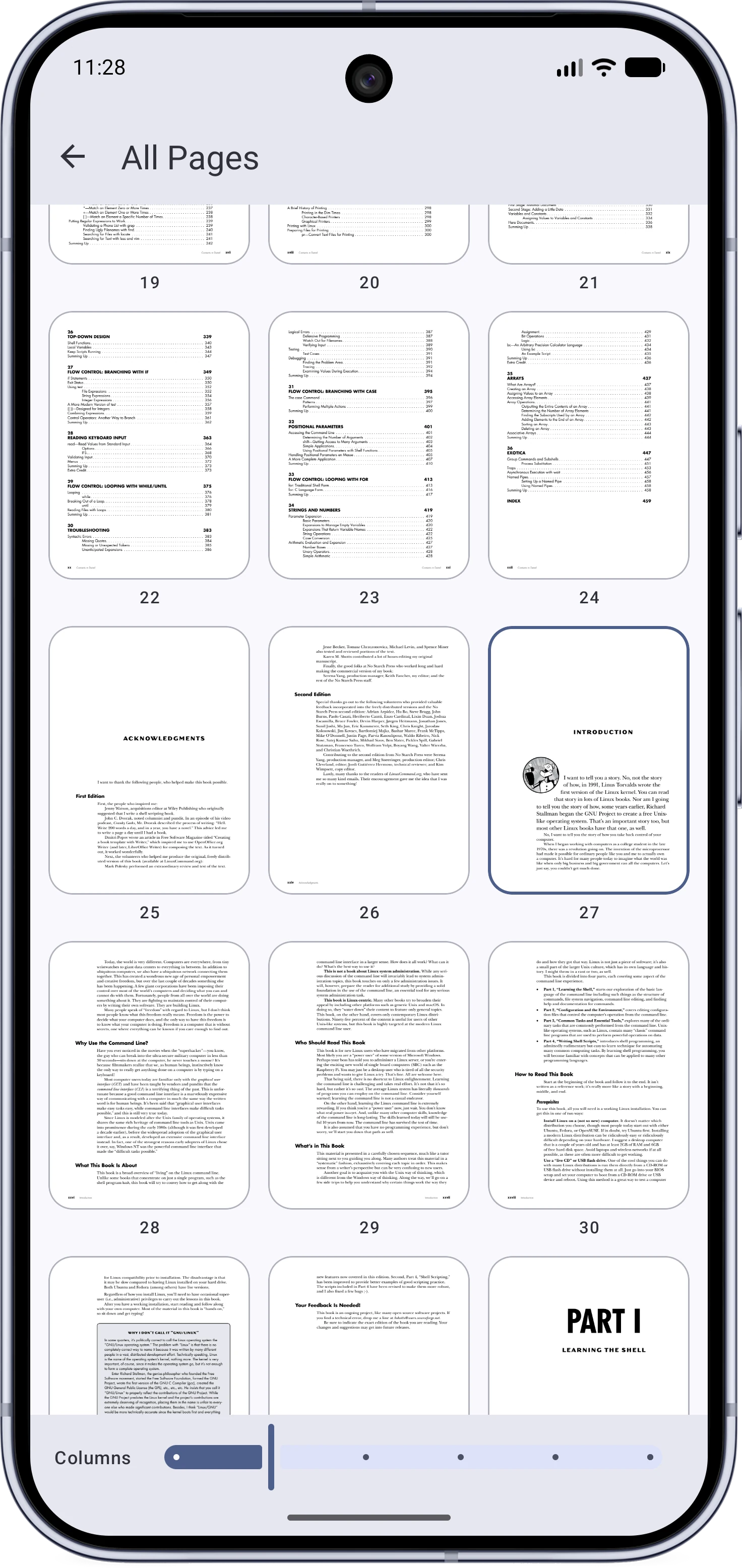 |
- Go To Page shows page thumbnails, not just a number field.
- An All Pages view lays out the whole document as a customizable grid for fast visual jumps.
Table of Contents and Links#
| The Table of Contents |
|---|
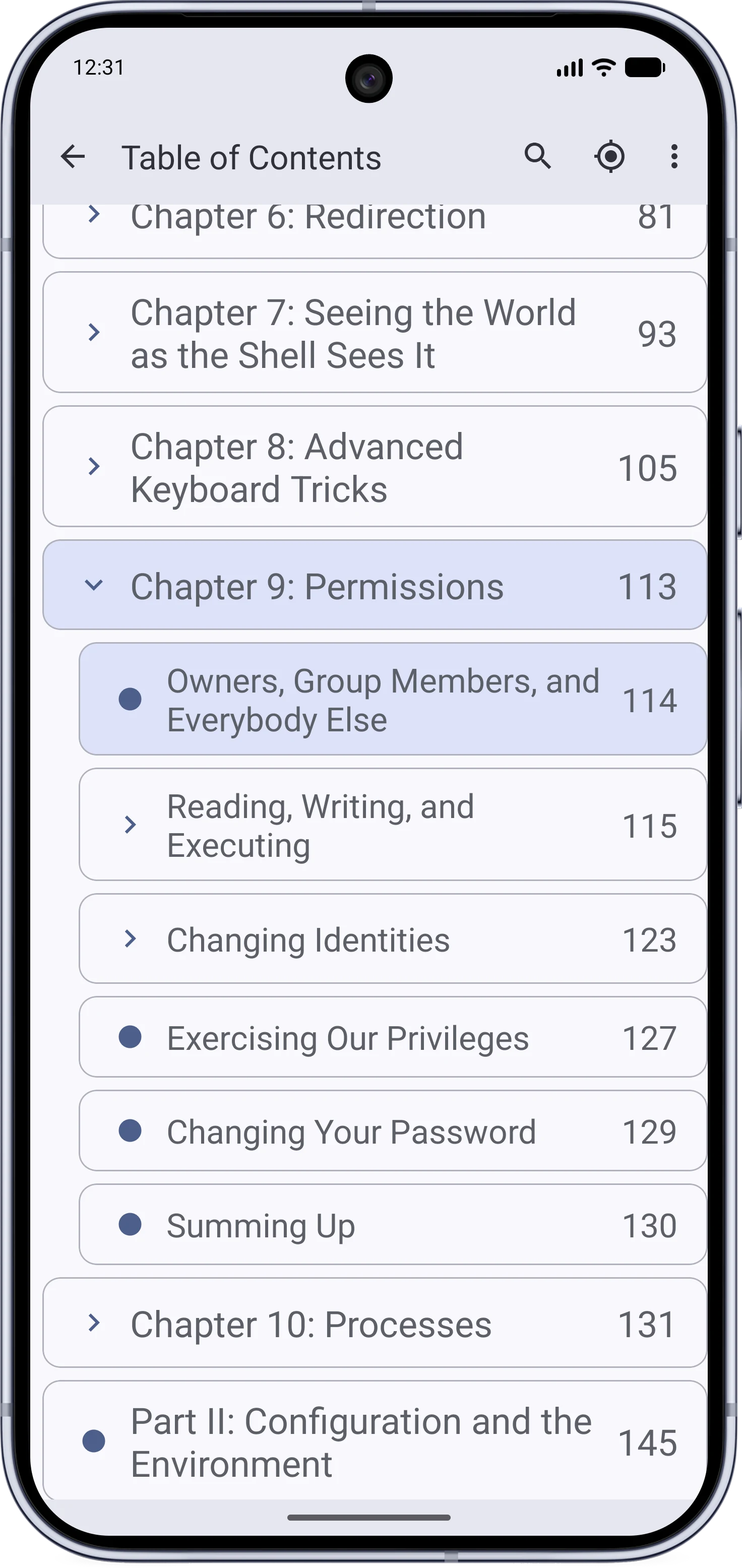 |
- Search inside the Table of Contents, matching titles and page numbers.
- Added expand all entries, collapse all entries, and locate the current entry buttons.
- The path to your current chapter is highlighted.
- Jumping from the contents shows a snackbar to jump right back.
- Huge tables of contents scroll smoothly now.
Bookmarks and Navigation History#
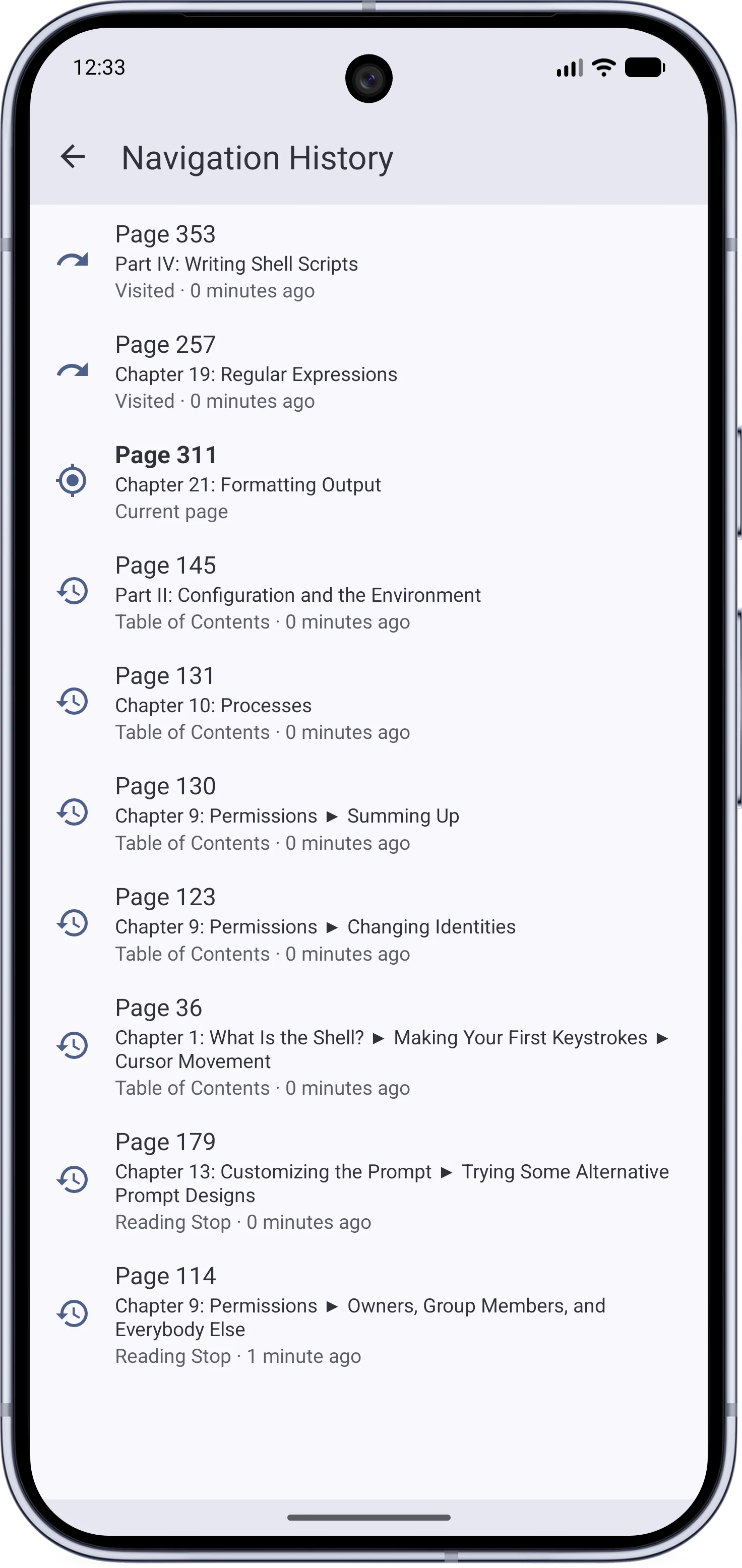
| My Bookmarks | Back and forward, like a browser |
|---|
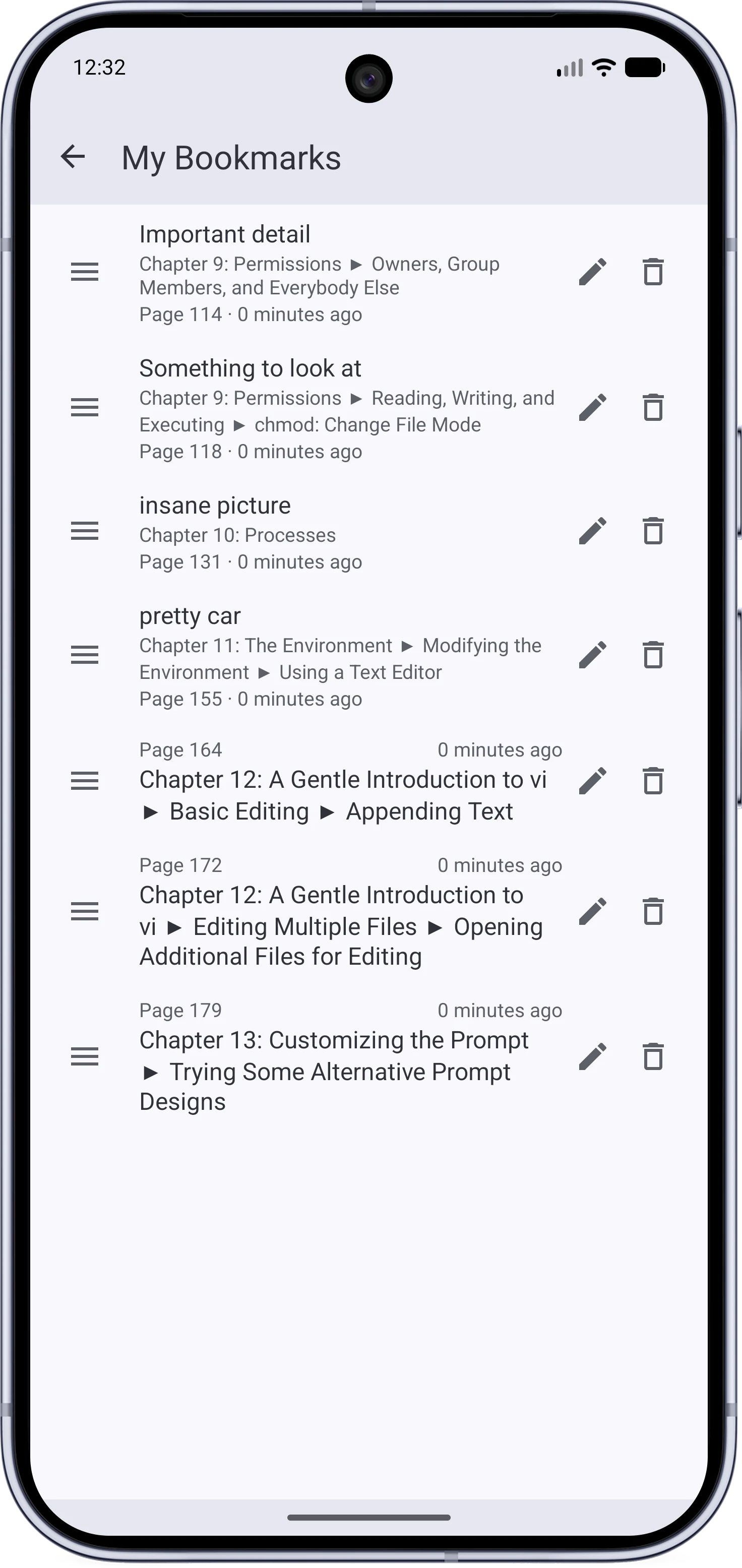 |  |
- Bookmark any page and give it your own name.
- Every bookmark shows the chapter it belongs to, pulled from the table of contents.
- Jumping through an internal link offers a jump back that restores the exact view you left.
- Browser-like history for everything that moves you around: links, bookmarks, contents, search, and go-to jumps.
- Long reading stops are recorded automatically in the navigation history.
Privacy#
Incognito and History Controls#
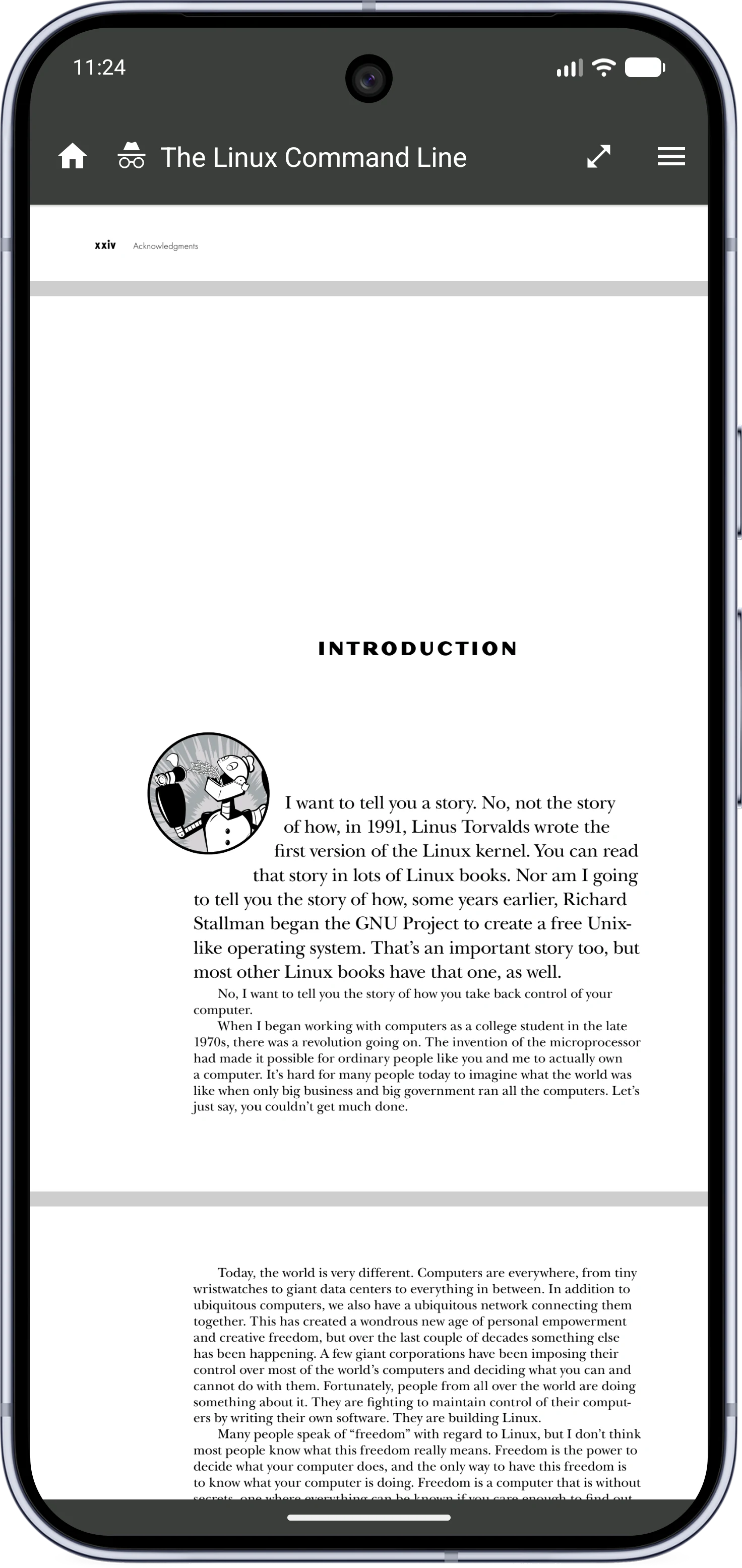
| Incognito in the reader | The History and Privacy page |
|---|
 | 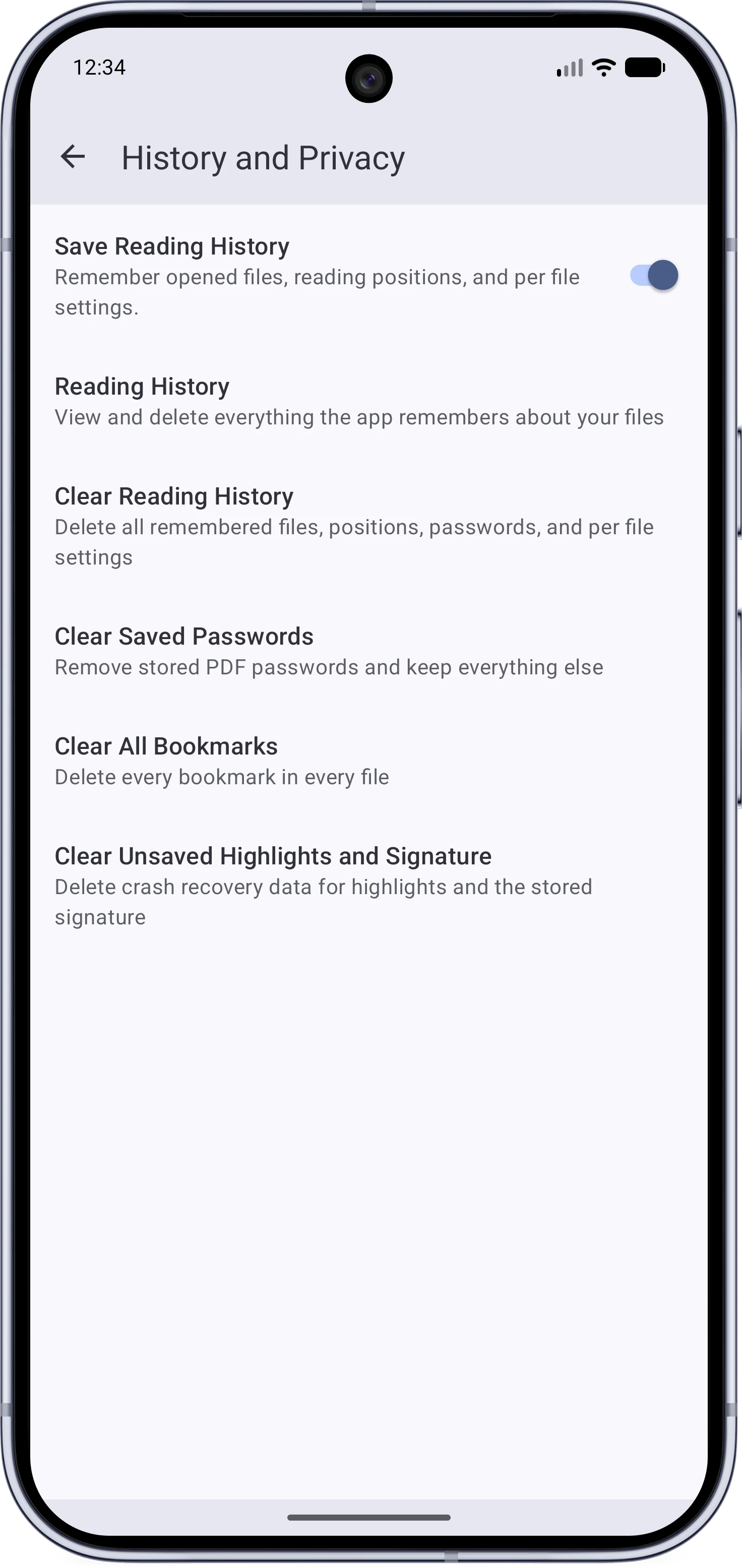 |
- A dedicated History and Privacy settings page with a global switch that stops all reading history writes.
- A Reading History screen listing every remembered document, including hidden ones, with per-item delete.
- A strict per-session incognito mode: no history, no positions, no passwords, etc.
- The app theme turns into a special dark color with an incognito icon while it is active.
Backup and Restore#
| Backup settings |
|---|
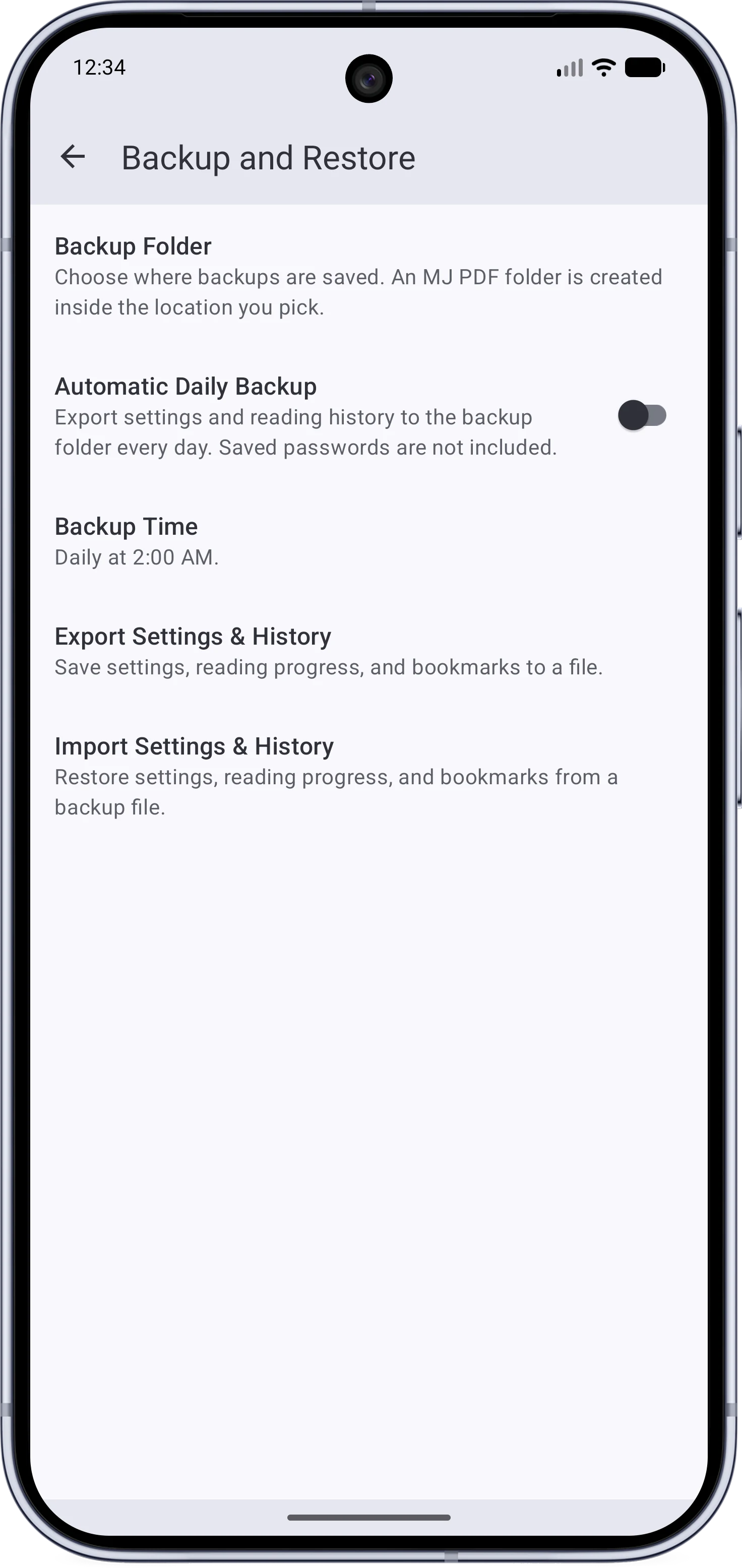 |
- Export and import your settings, reading history, and app data.
- Optional automatic daily backups on a schedule you set.
- Automatic backups are pruned to the ten newest.
- Every backup is verified by reading it back before it counts.
- Import validates the file first and warns clearly before anything is replaced.
- Restoring is atomic and starts with a verified safety snapshot of your current data.
- A corrupted or hand-edited backup shouldn’t crash the app: bad values self-heal to defaults.
| Light | Dark |
|---|
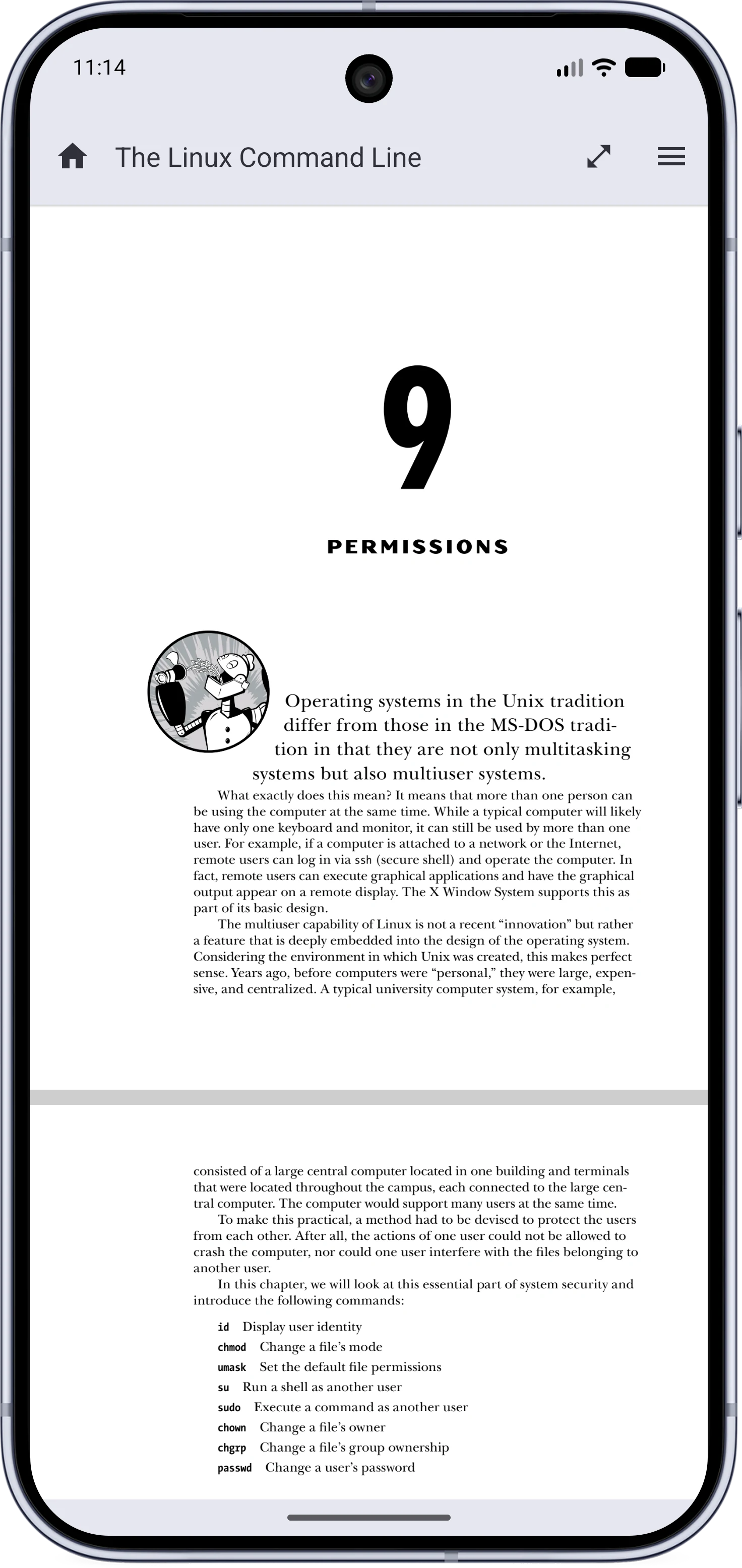 | 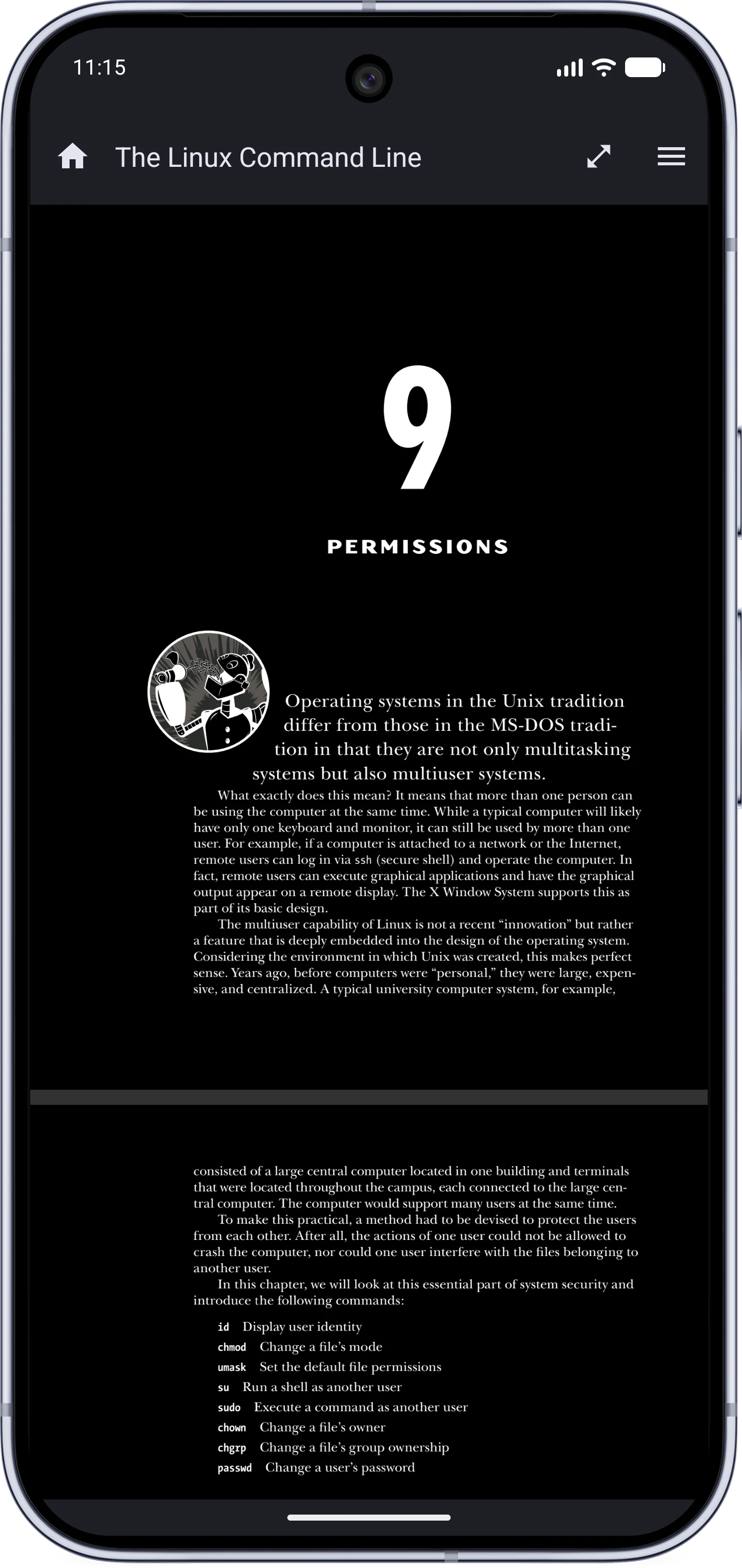 |
- Material You dynamic colors across the whole app, matching your device in both light and dark themes.
- Consistent cards and snackbar style everywhere.
- Fullscreen now is edge-to-edge, including notch areas.
- The theme toggle switches PDF dark mode in place. No flicker and no restart.
- Auto scroll moves by real elapsed time, pauses while you interact, and remembers its speed per book.
Reorganized Settings#
| The settings page |
|---|
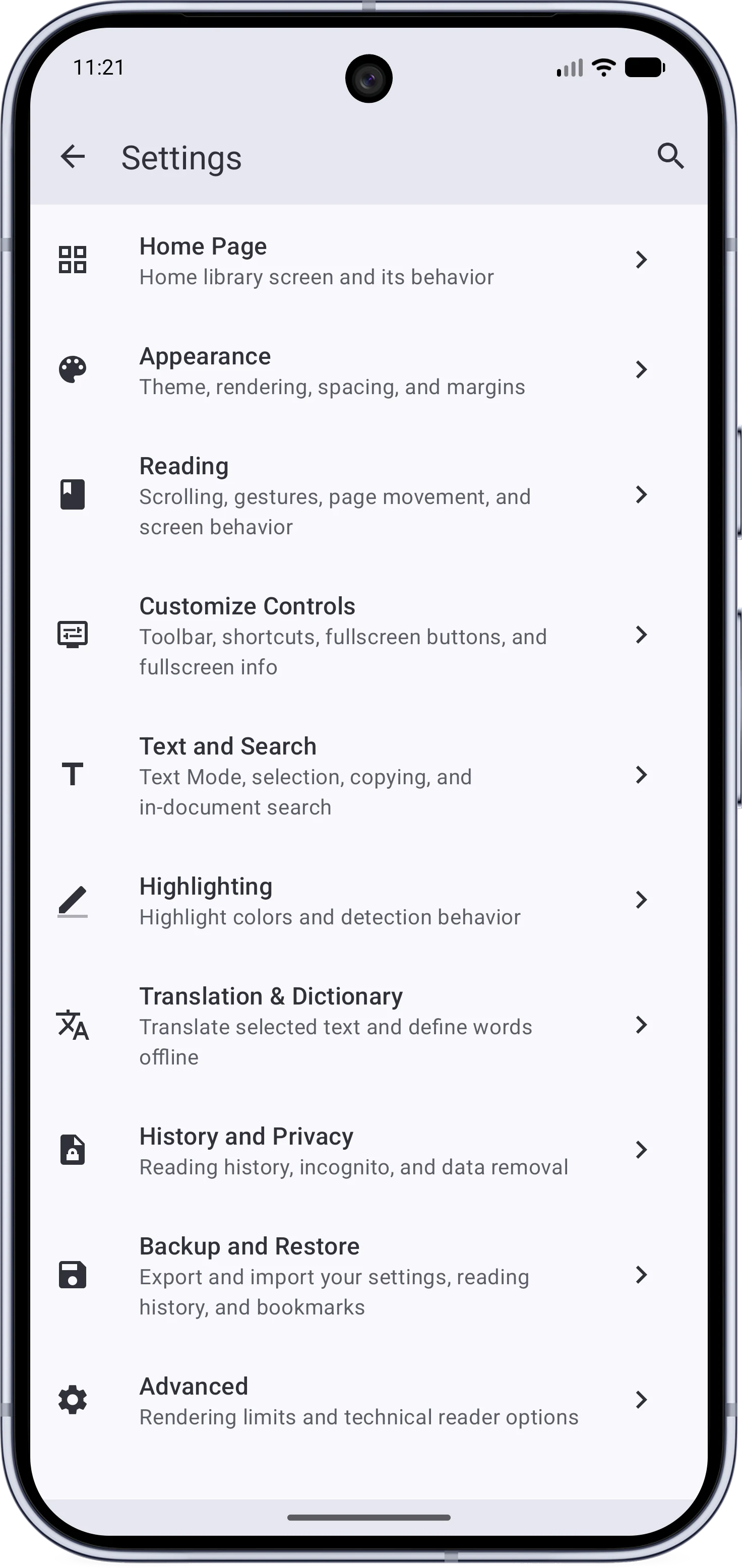 |
- Settings were reorganized into searchable pages and sections.
- Every option was revised, obsolete ones were deleted, and titles and descriptions were rewritten for clarity.
A New Intro, About, and What’s New#
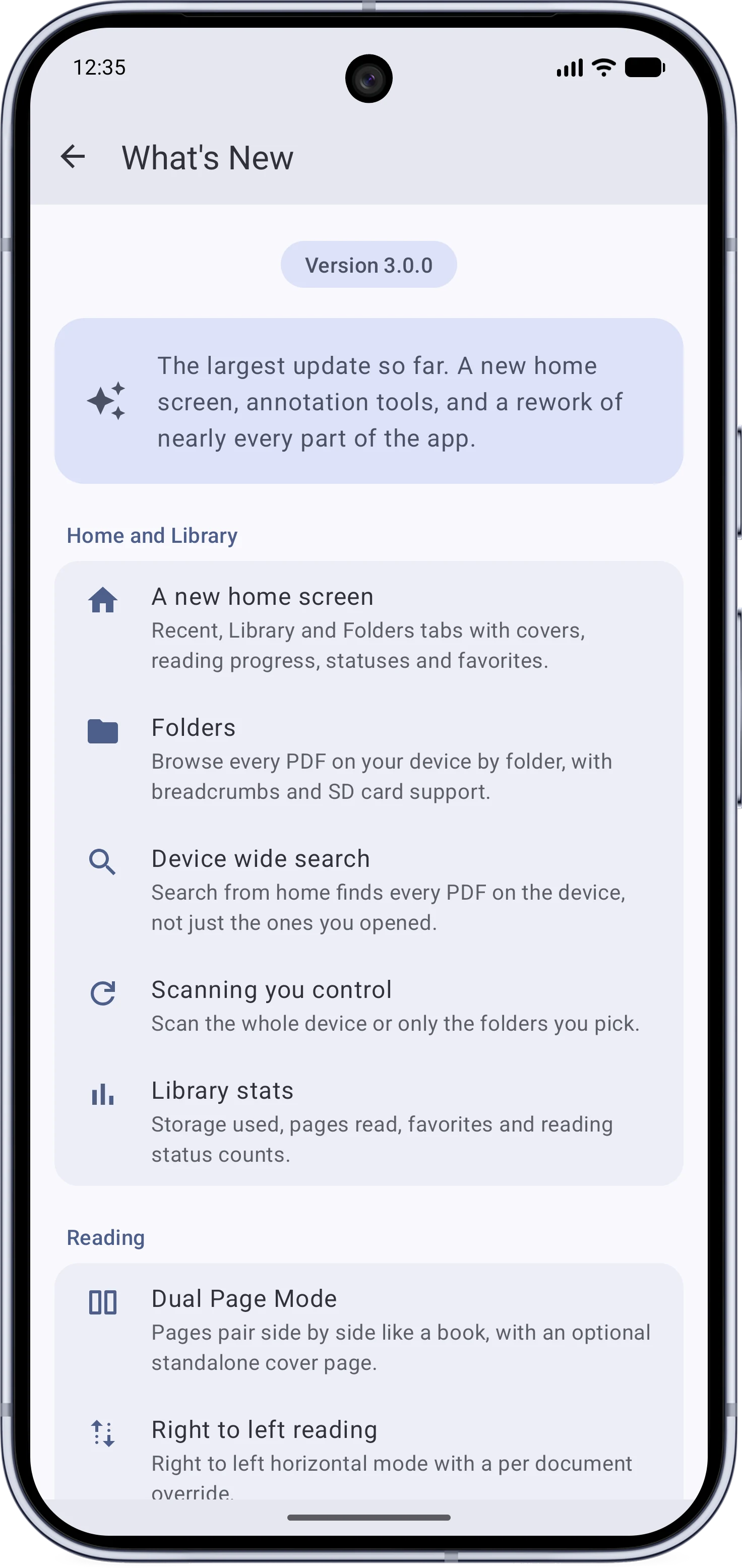
| The About page | The What’s New page |
|---|
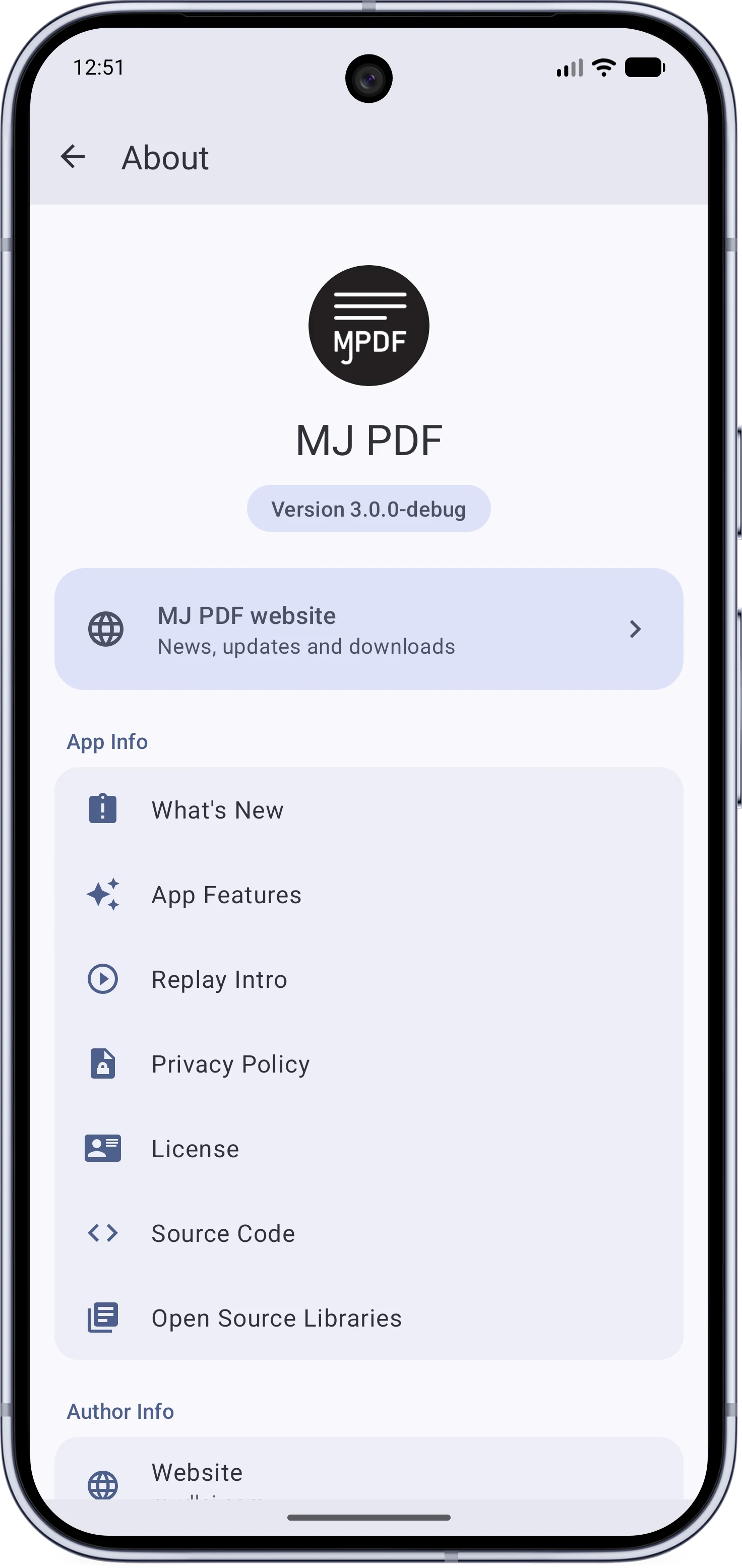 |  |
- The About page and the Intro got rewritten from scratch with Material You.
- A new What’s New page presents each release, replacing the old dialog.
Fifteen Languages, Fully Translated#
MJ PDF v3 ships 7 new languages, making the app available in 15 languages: Arabic, German, Spanish, Persian, French, Hindi, Italian, Dutch, Polish, Brazilian Portuguese, Russian, Turkish, Ukrainian, Simplified Chinese, and Traditional Chinese.
Thanks to community translators.
Much Faster Rendering#
Even though MJ PDF was famous for being a fast app, v3.0.0 made it faster across the board. MJ PDF now builds PDFium from source, optimized for speed. On top of that sits a reworked rendering pipeline:
- Pinch zoom renders whole-page snapshots instead of a patchwork of tiles, and pages re-render in steps while you pinch.
- A smarter tile cache with a fixed memory budget that evicts genuinely old tiles first.
- Search, contents, links, and covers all open the PDF off the main thread. No jank on big files.
- Every page gets a render-once preview, cached in memory and on disk, so pages show instantly.
- An idle sweep quietly pre-renders previews for the whole book, and scrubbing through a book draws them immediately.
- Rendering is chunked and cancellable: stale work dies in milliseconds instead of blocking the next page.
- Preview quality adapts to the device, so low-memory phones stay smooth.
Shared PDFs That Survive#
PDFs opened from other apps used to vanish once the sending app threw away the temporary file. Not anymore.
- A PDF shared from another app is silently copied to
Documents/MJ PDF, and the copy becomes the book’s location.
- The copy only happens when the source is truly temporary, and you can switch it off in the History and Privacy settings page.
- Reopening a dead share recovers on its own: by using the saved copy, a library match, or a locate dialog that verifies the picked file is the same document.
- A background pass re-links broken records to rediscovered files by their content, restoring their reading progress.
Hundreds of Fixes and Improvements#
Too many to list here. A few worth highlighting:
- The database moved out of the cache directory, so history, passwords, and progress no longer vanish when Android clears the cache.
- Native memory leaks fixed.
- Dozens of crash scenarios removed.
- The viewer no longer goes permanently blank after switching away and back.
- Printing downloaded and password-protected PDFs now works, and the storage permission flow works on Android 10 and below.
Under the Hood#
The invisible re-work was as big:
- The code was re-architected around a single composition root, after years of growing in one giant screen.
- The last Java files are gone. The app is now fully Kotlin, on Android SDK 36.
- The libraries that were once lightly patched forks are now maintained as part of MJ PDF: they handle text selection, highlights, forms, signatures, margin detection, and dual page layout.
- PDFium, FreeType, and libpng are built from source with one script, and a guide documents the full build from a fresh Linux install.
How to Get It#
End